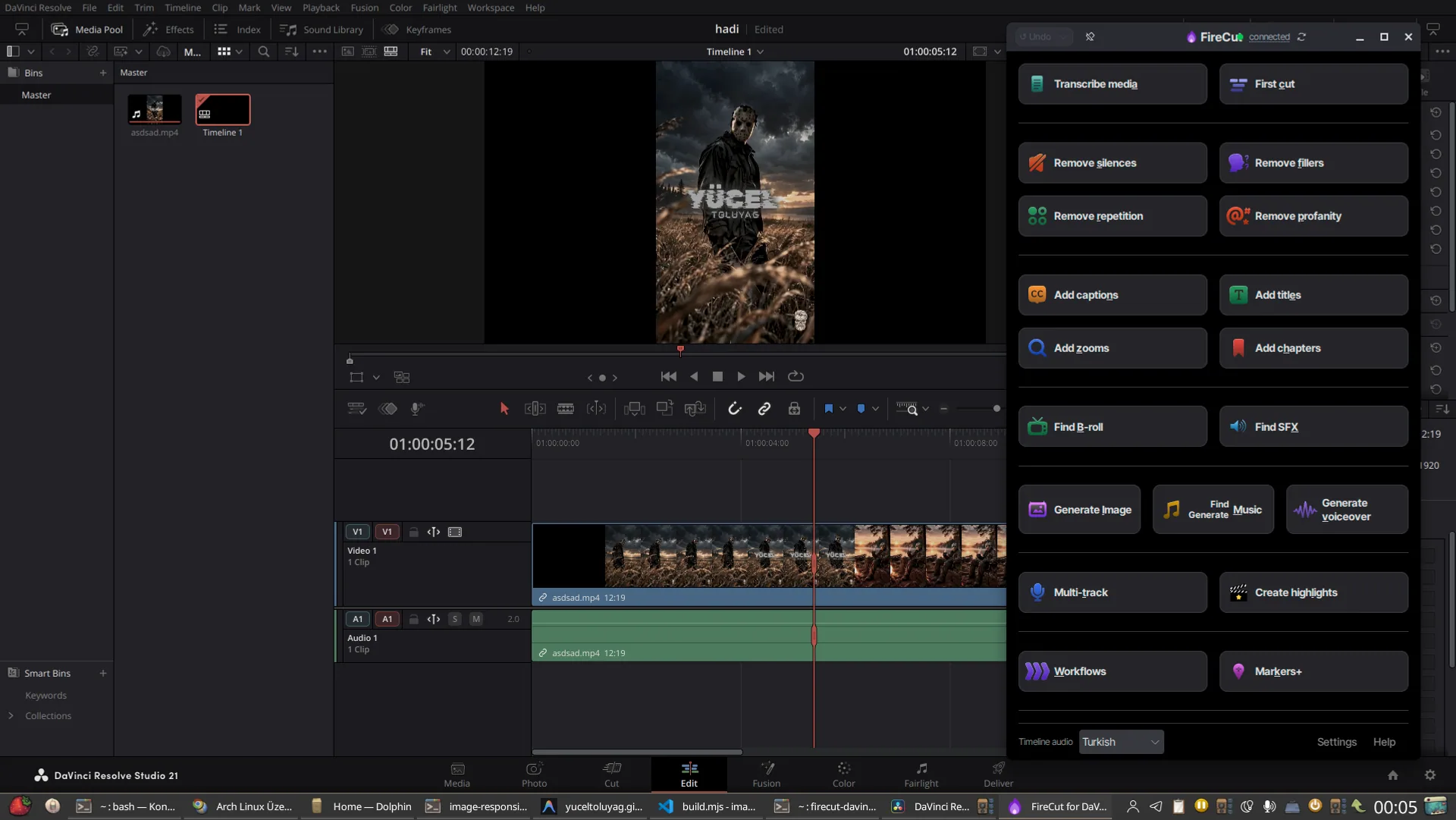
DaVinci Resolve is one of the powerful video editing tools available on Linux. However, some of the companion plugins we use are not offered directly as Arch Linux packages. FireCut is one of them.
FireCut is an AI-powered tool that makes the video editing process easier within DaVinci Resolve. It offers features such as removing silences, handling subtitles, and automating repetitive editing tasks.
The Linux version of FireCut is distributed in Debian package format (.deb). On Debian- and Ubuntu-based distributions, it is possible to install this package directly. On Arch Linux, we can use Debtap to convert the DEB package into a package that can be installed with pacman.
In this guide, I will describe the steps I followed to install FireCut 4.3.2 on Arch Linux and how I worked around the Debtap issue I encountered.
Requirements#
Before starting the installation, make sure your system has the following:
- Arch Linux or an Arch-based distribution
- A working DaVinci Resolve installation
- An AUR helper (for example, yay) to install AUR packages
- Debtap to convert the DEB package to the Arch Linux package format
According to FireCut's official documentation, DaVinci Resolve 20 or later is required. Both the free and Studio versions are supported.
1. Installing Debtap#
First, install the Debtap package from the AUR:
yay -S debtap
After installation, Debtap needs to update its package databases:
sudo debtap -u
This may take some time. Debtap downloads information about Debian and Ubuntu packages and prepares the databases it will use during conversion.
On my system, even after the update completed, Debtap continued to warn at the next stage that the database was not up to date.
2. Debtap and pkgfile compatibility issue#
While investigating the issue, I checked the versions I was using:
debtap -v
pkgfile --version
My system had Debtap 3.6.3 and pkgfile v27.
Although sudo debtap -u successfully created the databases, Debtap continued to say that an update was needed when checking these files.
I checked /usr/bin/debtap. I inspected the expression on line 154 where the relevant check was performed:
sudo nano /usr/bin/debtap
I made a backup before changing the original file:
sudo cp /usr/bin/debtap /usr/bin/debtap.bak
Then I locally edited the version suffix check on line 154:
sudo sed -i '154s/{3}/{0,3}/' /usr/bin/debtap
After this change, Debtap accepted the databases it had created, and I was able to continue with the DEB package conversion.
Important: This edit was a local workaround I used to get past the check on my system. Do not assume that the same line or issue exists in every version of Debtap. First check the relevant line on your own system:
sed -n '154p' /usr/bin/debtap
If you want to undo the edit, you can restore the backup we made:
sudo cp /usr/bin/debtap.bak /usr/bin/debtap
3. Downloading the FireCut DEB package#
You can get the Linux version of FireCut from the official download page.
Older versions are also available on the download page. The version used in this guide is FireCut 4.3.2.
File name:
firecut-davinci.v4_3_2.x64.deb
In the terminal, navigate to the directory containing the downloaded file.
For example:
cd ~/Downloads
Make sure the file name matches the one on your system.
4. Converting the DEB package to an Arch Linux package#
Now we convert the downloaded package with Debtap:
debtap firecut-davinci.v4_3_2.x64.deb
During conversion, Debtap will ask for some package information.
The values I used:
- Packager:
friday13 - License: I left it blank.
- Edit PKGINFO: Continued with the default option.
- Edit INSTALL script: Continued with the default option.
When the process completed, the following package was created:
firecut-davinci-4.3.2-1-x86_64.pkg.tar.zst
At this point, we have an Arch Linux package that can be installed with pacman.
5. Checking package information and dependencies#
Instead of installing the generated package immediately, I first checked its contents and dependencies.
Package information:
pacman -Qip firecut-davinci-4.3.2-1-x86_64.pkg.tar.zst
The check showed the following information:
| Information | Value |
|---|---|
| Package name | firecut-davinci |
| Version | 4.3.2-1 |
| Architecture | x86_64 |
| Installed size | 355.67 MiB |
| Packager | friday13 |
To check the package dependencies:
pacman -T alsa-lib at-spi2-core cairo ffmpeg gtk3 libcups libx11 libxcb libxcomposite libxdamage libxext libxfixes libxkbcommon libxrandr mesa nspr nss pango
This command lists any missing dependencies. On my system, it returned no output. In other words, the dependencies declared by the package were already installed.
To inspect the package contents:
pacman -Qlp firecut-davinci-4.3.2-1-x86_64.pkg.tar.zst
I saw that the application was placed in /opt/FireCut for DaVinci Resolve/, and that the package also included a desktop shortcut and icon files.
6. Installing FireCut#
After completing the checks, we install the package with pacman:
sudo pacman -U ./firecut-davinci-4.3.2-1-x86_64.pkg.tar.zst
Once installation is complete, FireCut is added to the system.
The installation script prepares the application's executable link and desktop entry. To launch the application from the terminal:
firecut-davinci
You can also find the application in the desktop application menu.
7. Connecting FireCut to DaVinci Resolve (Wayland)#
After installing FireCut on Arch Linux, we need to configure its connection to DaVinci Resolve.
First, in DaVinci Resolve:
- Open
Preferences → General. - Find the
External scriptingsetting. - Set this option to Local.
- Save the settings.
Then open the FireCut application and launch the FireCut script from within DaVinci Resolve.
With this configuration, FireCut can connect to DaVinci Resolve's script host. I successfully established this connection in a Wayland session on Arch Linux.
Important note about Wayland: When FireCut starts, you may see the warning UI automation requires an X11 session. Wayland is not supported. This warning indicates that FireCut's UI Automation component does not support Wayland. However, this does not mean that the local script-host connection to DaVinci Resolve will also fail. When you set External scripting to Local, the Resolve connection can be established.
Therefore, anyone who wants to use FireCut on Wayland needs to distinguish between these two features.
8. Updates and points to keep in mind#
The Linux version of FireCut does not support automatic updates. You need to check FireCut's official download page for new versions.
When a new version is released, you can download the DEB package, convert it again with Debtap, and install it through pacman.
Since Arch Linux is a rolling-release distribution, you should also consider the compatibility of third-party packages with system libraries. In addition, Blackmagic Design does not officially provide Arch Linux support for DaVinci Resolve; installation and compatibility on this platform depend on community packages and system configuration.
For this reason, if you have a working setup, it is a good idea to note the current package version and your configuration before major updates.
Conclusion#
The fact that FireCut offers only a DEB package for Linux may seem like a minor obstacle at first for Arch Linux users. However, Debtap makes it possible to manage this package with pacman.
In my installation process, the part that took the most time was not FireCut, but Debtap's pkgfile database check. After a local edit got past this check, the package was created successfully and installed with pacman.
As a result, I was able to run FireCut 4.3.2 with DaVinci Resolve on Arch Linux.
I have shared the installation steps I verified in my environment in this guide. Keep in mind that small differences may occur on other Arch-based distributions or in future Debtap versions.