Hello! 🎥 Open Broadcaster Software (OBS) is one of the best applications for video recording and live streaming. However, since there aren't enough Turkish resources about the plugin installation process on Linux environment, I prepared this guide. I won't explain how to use OBS, because there's already enough content about this topic. In this article, we'll learn how to add the Linux Browser plugin to OBS and how to integrate Discord StreamKit.
Installation#
We'll add a plugin to OBS and perform Discord StreamKit integration as a test. 🎤💬
Update: Linux Browser Plugin now comes by default. You don't need to install it extra! 🚀
- ~~obs-linuxbrowser~~ (Old method, no longer necessary. Don't install!)
- Discord StreamKit
You can do these operations manually, but I prefer doing it through terminal.
Installation via Terminal (Old Method)#
If the plugin doesn't come by default, you can use the following commands manually:
wget https://github.com/bazukas/obs-linuxbrowser/releases/download/0.6.1/linuxbrowser0.6.1-obs23.0.2-64bit.tgz
mkdir -p $HOME/.config/obs-studio/plugins
tar xfvz linuxbrowser0.6.1-obs23.0.2-64bit.tgz -C $HOME/.config/obs-studio/plugins/
After Installation#
After completing these steps, the plugin will be successfully added to OBS's plugin folder. When you want to install another plugin, you can use the same directory.
Usage#
1. Opening Linux Browser Plugin on OBS#
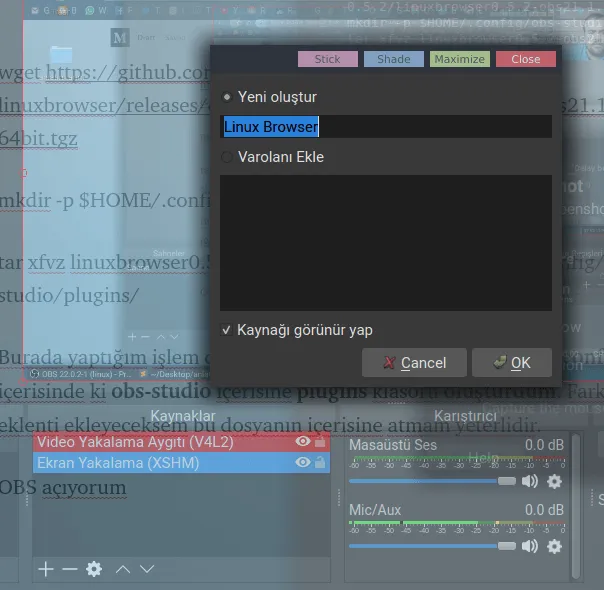
Open OBS and press the Sources (+) button and select the Linux Browser option.
2. Discord StreamKit Integration#
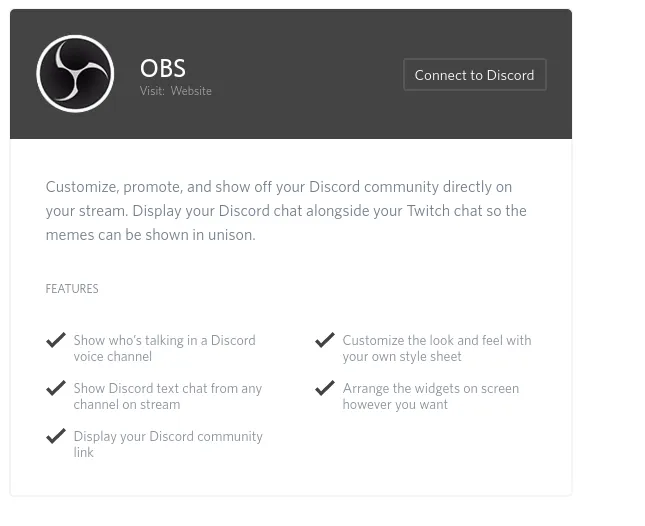
Go to the Discord StreamKit page and click the OBS -> Connect to Discord button at the bottom.
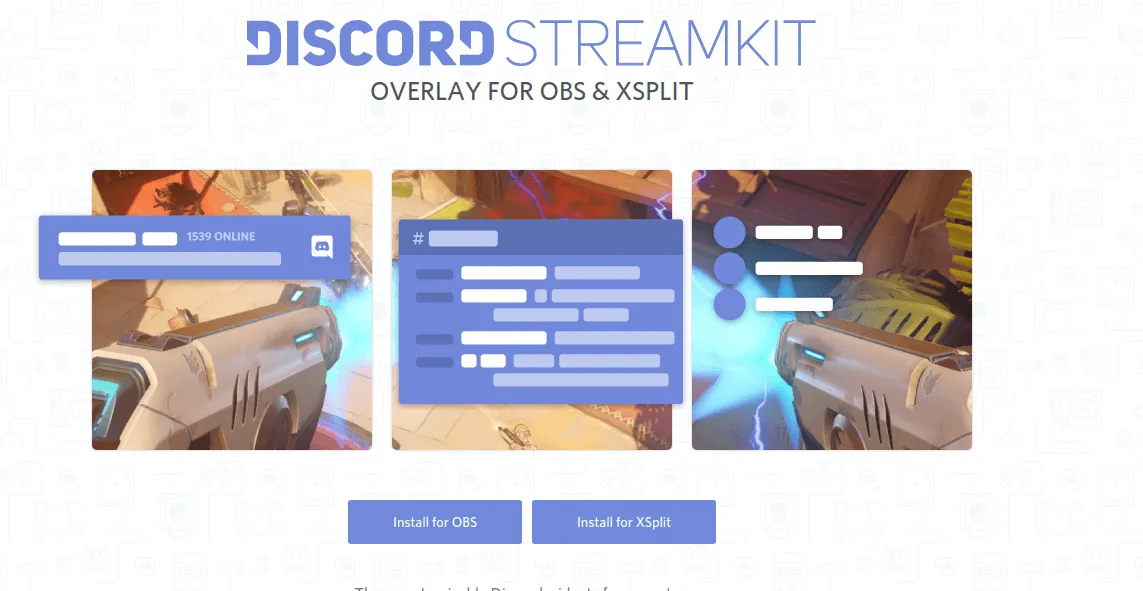
Press the Install For OBS button.
3. Server Selection and Settings#
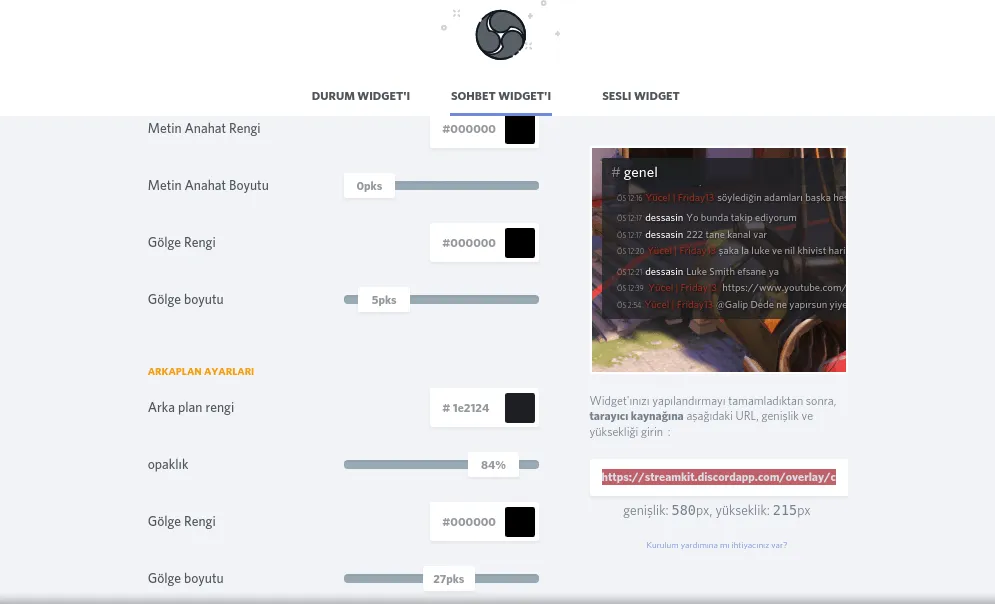
In the opened screen, select your server and make the necessary settings for voice or text chat integration.
4. Adding URL in OBS#
Open the Linux Browser source in OBS and paste the connection provided by Discord StreamKit into the URL field.
💡 Tip: If you have CSS knowledge, you can make customizations on the screen to get a more stylish look! 🎨
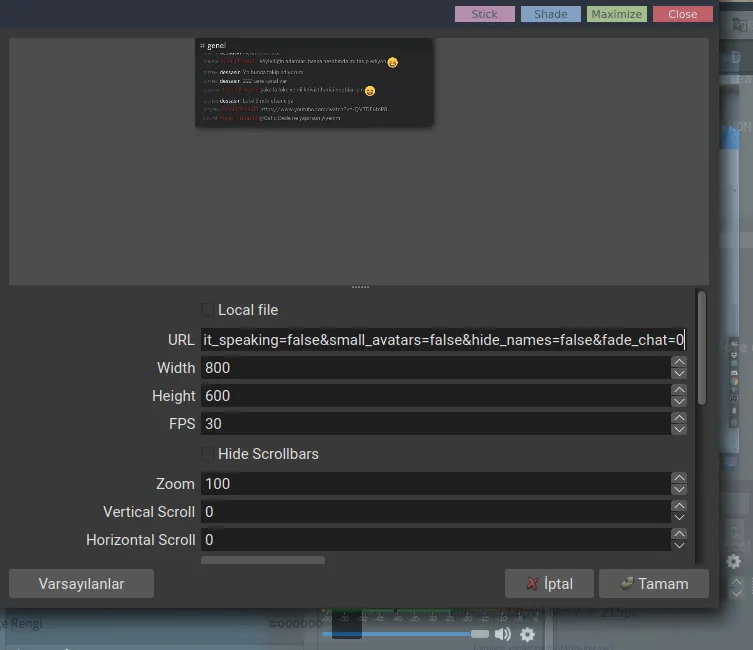
🎉 Here's the result!
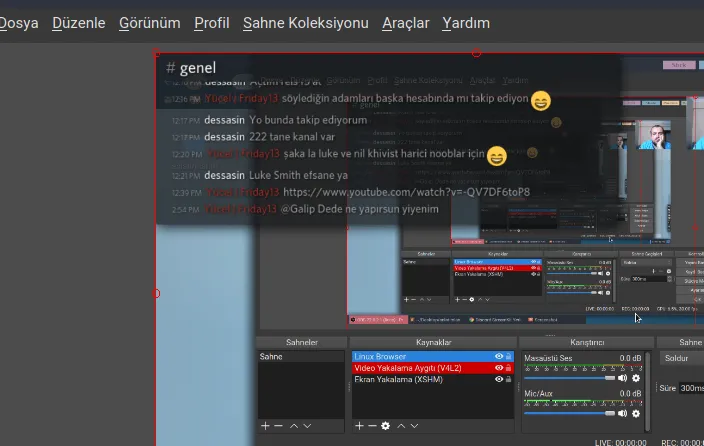 #
Our Linux Discord Server 🚀#
You can join our Discord server to chat and get support about Linux!
I hope this guide will be useful for Linux users. If you have any questions, you can specify them in the comments! 📢
Comments