🧐 Introduction: Why Should You Play Rise of Kingdoms on Linux?#
Rise of Kingdoms is a popular strategy game that started on mobile but can also be played on PC via Windows. However, it doesn't offer native support for Linux users. In this guide, we'll show you how to install Rise of Kingdoms on Arch Linux using Lutris, how to solve graphics issues, and what settings you need to make for a smooth experience.
🔧 1. Installing Required Dependencies#
sudo pacman -S lutris wine winetricks
Recommended:
yay -S wine-ge lutris winetricks
Notes:
- The
wine-geversion may be more stable for games. - If Lutris is not installed on your system, you can install it from AUR.
📀 2. Setup.exe Installation via Lutris#
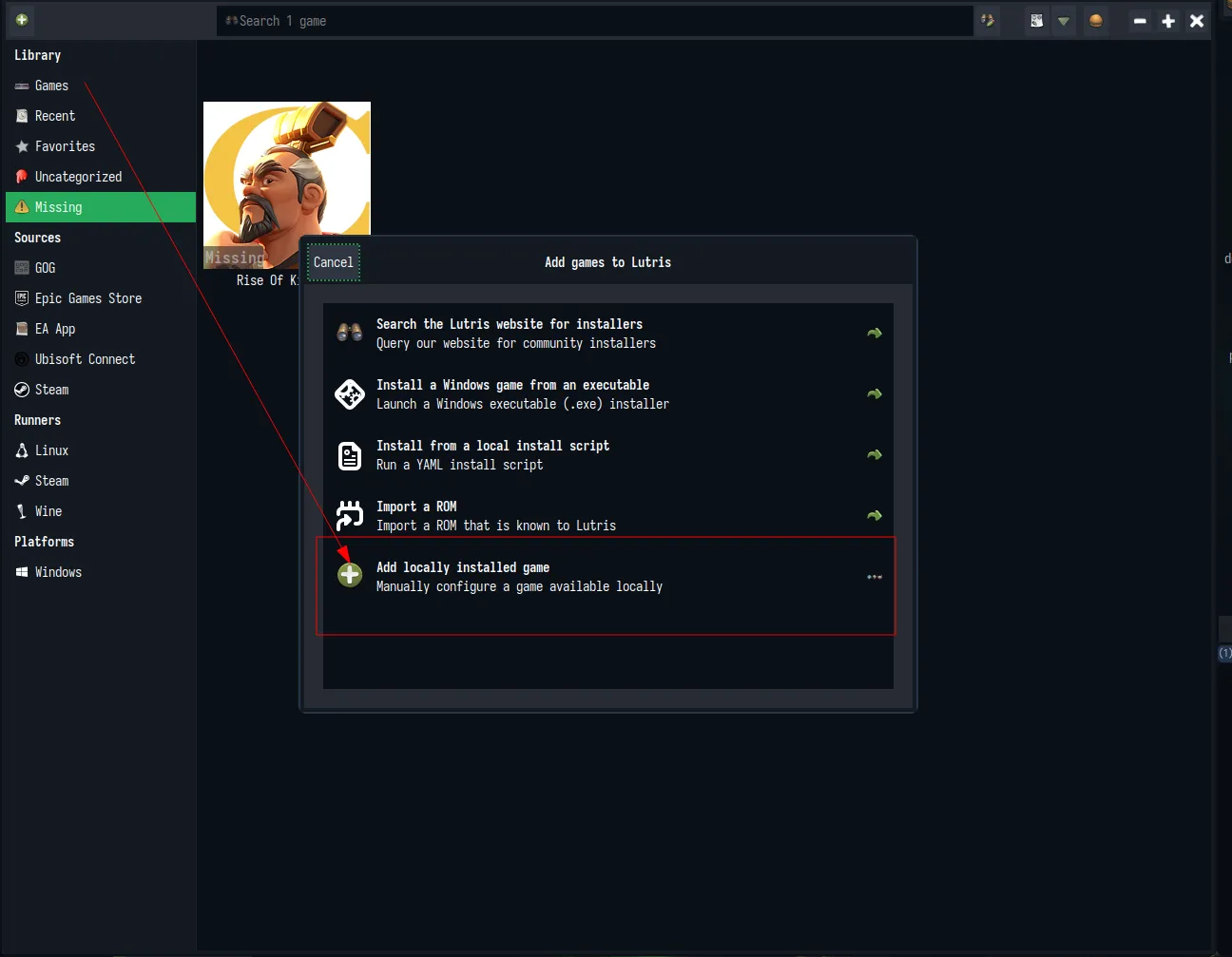
- Open Lutris.
- Click the "+" button in the lower left corner, then "Add a new game".
- Select the Wine runner.
- Set the
setup.exefile in the "Executable" field. - Follow the installation wizard.
⚙️ 3. Optimizing Wine Settings#
Settings to Make:#
- Set Windows version to "Windows 10".
- Add
d3dcompiler_47andvcrun2019to DLL overrides. - If necessary, via
winetricks:
winetricks corefonts vcrun2019 d3dcompiler_47
Lutris does these settings for you. If you encounter an error with another game, you can make these settings yourself.
🗅️ 4. Fixing Graphics Glitch and Flickering Issues#
Problem:#
- Black screens
- Mouse ghosting
- Screen flickering
Solution:#
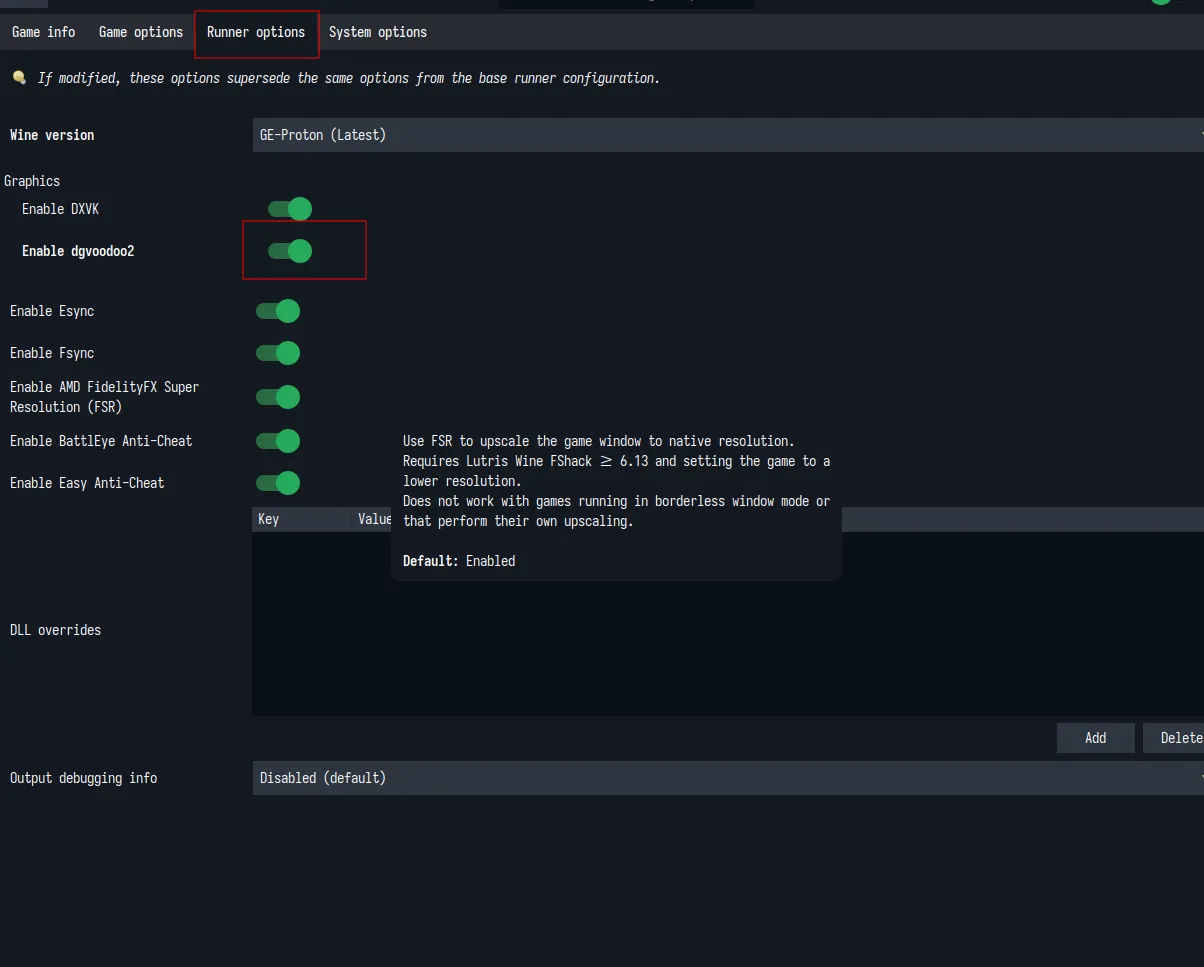
- Enable DXVK in Lutris runner options.
- Enable dgvoodoo2 in Lutris runner options.
- Your settings should look like in the image.
-
If the problem continues with the above solution, follow the steps below.
-
Turn off overlay by setting
DXVK_HUD=0. - Create or edit the following file inside the Wine prefix where the game runs:
nano ~/.config/lutris/runners/wine/default/user_settings.cfg
And add this inside:
[DXVK]
dxgi.customDeviceDesc = NVIDIA GeForce GTX 1050
dxgi.numBackBuffers = 2
🗄️ 5. Special Settings for Resolution Problems#
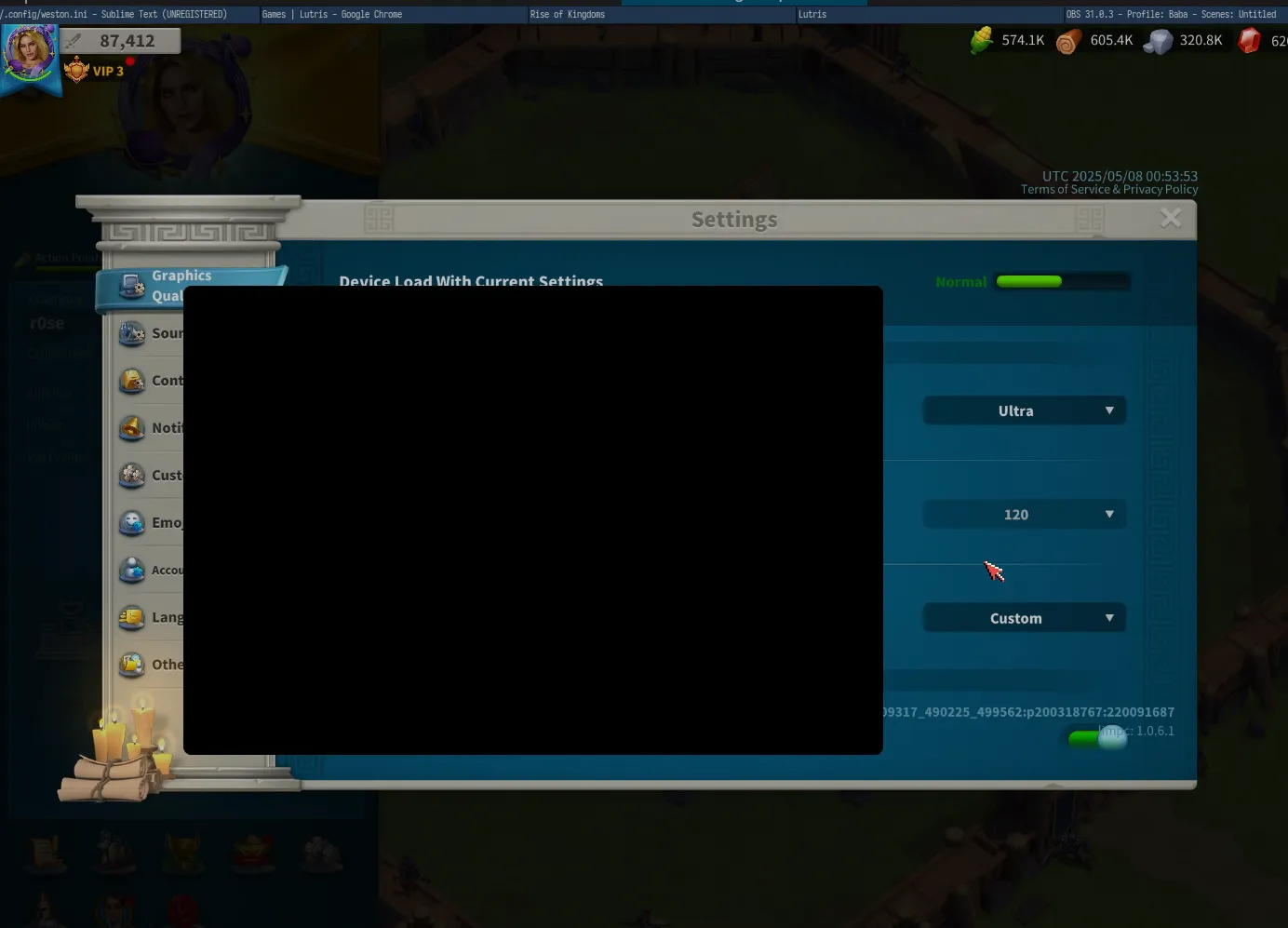
You may experience issues like screen distortions, flickering, or inability to change resolution when running the game without dgvoodoo2. Make sure dgvoodoo2 is enabled. If the problem is not resolved even if you've enabled it, follow these steps to solve the problem.
Steps:#
- Check the "Run in a virtual desktop" box in Lutris game settings.
- Match the resolution with your desktop resolution.
- Set the DPI value to 100 from
winecfg > Graphics.
🥺 6. Testing and Stability Check#
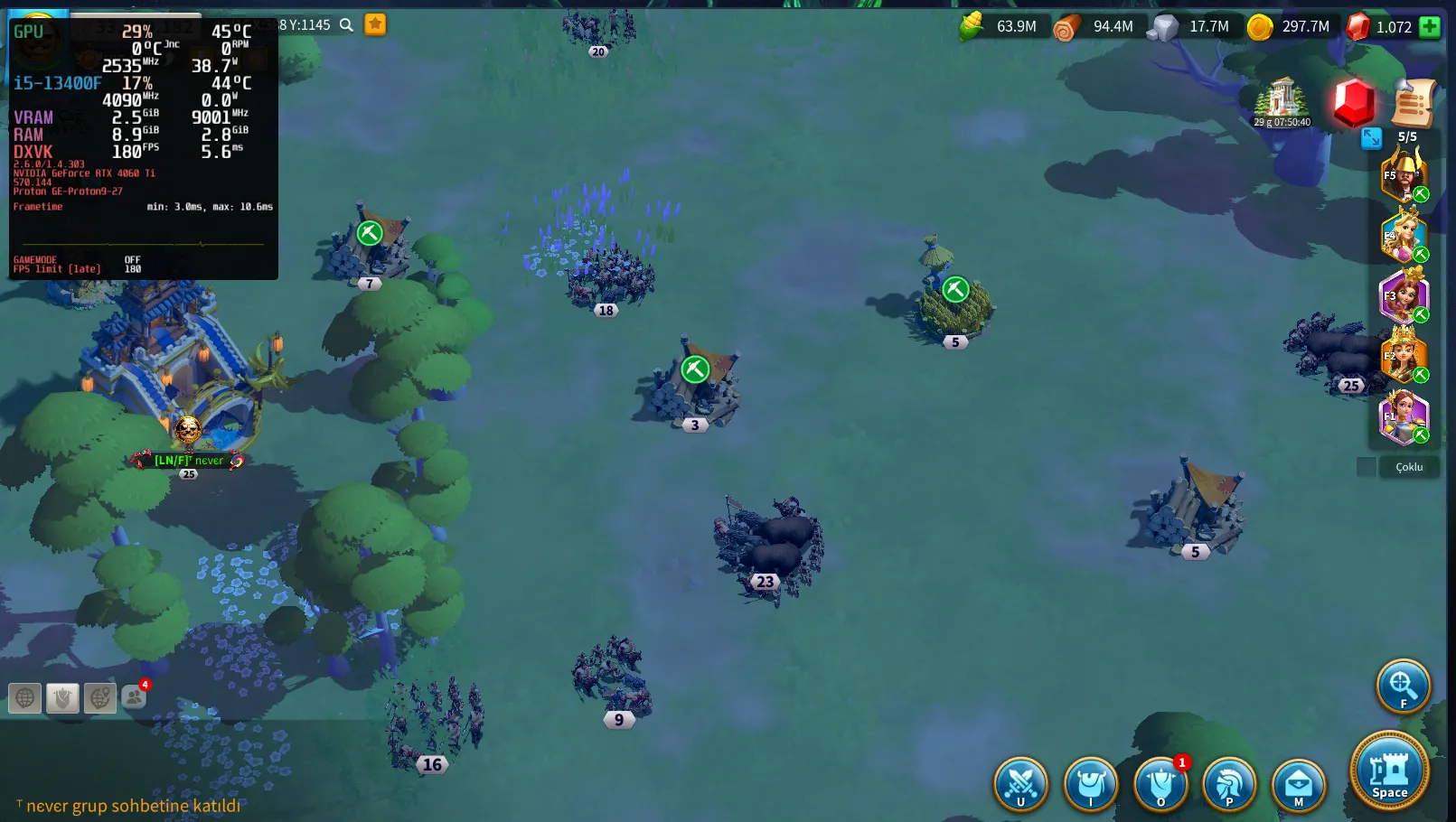 Now the game runs just like on Windows. We tested everything in a live stream.
If the problem is not solved, follow the steps below.
- Play the game for a few minutes after starting.
- Test audio, video, and controls.
- Check Lutris logs (
Right Click > Show Logs).
💡 Extra Tips and Recommendations#
- You can track FPS and temperature with MangoHud.
- If you want to test Proton GE versions, change the runner in Lutris.
- You can install the game in an external folder to make backup easier.
📌 Conclusion#
Lutris is a great blessing for Linux users. Although running a non-native game like Rise of Kingdoms might seem complex at first, following these steps will get you a smooth gaming experience in no time. Most importantly, this process repeatedly shows the power and flexibility of Linux.
📣 Frequently Asked Questions#
-
The game doesn't open, what should I do? Check Lutris logs, it might be a missing DLL or DXVK issue.
-
No audio? Check your PulseAudio or PipeWire setup. Test via
winecfg. -
Low FPS? Check if DXVK and your Vulkan drivers are up to date. NVIDIA users should use
nvidia-dkms.
Video guide available at:#
-- Tested in a live stream.
-- Working at 1080p resolution.
-- Working smoothly at 60 FPS or higher.
Live Stream Replay: Click to watch live stream replay
Comments