Why Should You Use .xprofile If You're Using LightDM?#
Are you editing the ~/.xinitrc file to start your desktop environment in Arch Linux or other Linux distributions, but nothing works? 🤔
There could be only one reason: You're using LightDM or a similar Display Manager and your .xinitrc file is useless! In this article, we'll examine the difference between .xinitrc and .xprofile in detail and show you step by step why you should use .xprofile.
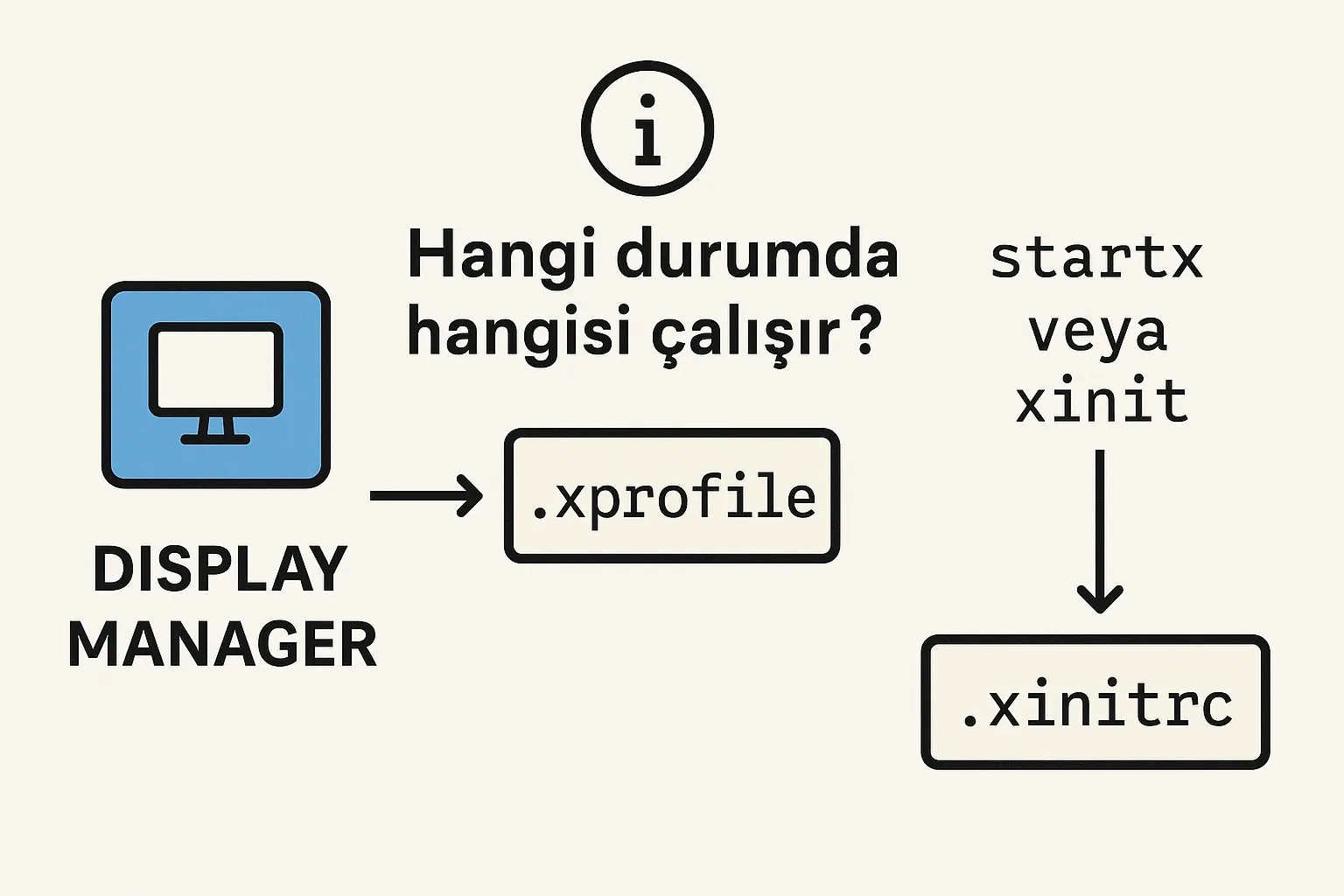
What are .xinitrc and .xprofile?#
What Does the .xinitrc File Do?#
.xinitrc traditionally enters into action when the desktop environment is started with the startx command. It's usually used in the following situations:
- Users who manually start sessions via
tty - Light systems (not using Display Manager)
- Minimalist users who want full control
Example .xinitrc content:
#!/bin/bash
xsetroot -cursor_name left_ptr &
exec i3
What is the .xprofile File Used For?#
.xprofile is run by Display Managers that automatically start GUI sessions. It's used especially for the following:
- Systems using display managers like
lightdm,gdm,sddm - Environment variables (
PATH,XCURSOR_PATH), session startup applications (numlockx,dunst, etc.) - Background services (like
mpd,ssh-agent)
Why Does LightDM Ignore .xinitrc?#
Display Managers (especially LightDM):
- Start sessions by themselves
- Don't run
~/.xinitrc - Only look at files like
~/.xprofile,~/.xsession,~/.pam_environment
So, no matter what you write in .xinitrc, LightDM won't read it.
Therefore, you must move all commands you want to run at startup to .xprofile.
Practical Scenario: Correct Startup with .xprofile#
The following example .xprofile file:
#!/bin/bash
# Environment variables
export XCURSOR_PATH="$HOME/.local/share/icons:$HOME/.icons:/usr/share/icons"

# Background services
pgrep -x "mpd" > /dev/null || setsid mpd &
setsid xscreensaver &
setsid dunst &

# SSH agent
eval "$(ssh-agent -s)" 2>/dev/null || true

# Nvidia settings
nvidia-settings --load-config-only --config "$HOME/.config/.nvidia-settings-rc" &

# i3 window manager
exec dbus-launch --sh-syntax --exit-with-session i3
As long as you keep the above commands in .xinitrc, nothing will happen. But if you put them in .xprofile, everything will work like magic! 🪄
Step by Step Transition: .xinitrc → .xprofile#
- Analyze
.xinitrccontent - Move environment variables and service startups to
.xprofile - Write
execcommands only once (don't make nested calls) - Clean or delete
.xinitrcfile (optional)
Common Mistakes#
- Doing
source ~/.xinitrcin.xprofileand writingexec i3again inxinitrc→ Double startup error - Writing only
exportcommands in.xinitrc→ Nothing will run - Not making
.xprofileexecutable →chmod +x ~/.xprofile
Summary: Which File Should You Use When?#
| Situation | Correct File |
|---|---|
If you're logging in with startx |
.xinitrc |
| If there's a DM like LightDM | .xprofile |
| System-wide environment variables | /etc/environment |
Conclusion and Call: Do You Know Which One to Use?#
Now you know the differences between .xinitrc and .xprofile. If you're using a Display Manager, move all your startup commands to your .xprofile file.
This way, you'll be free from troubles like services that can't start, theme settings that don't work, missing icons, etc.!
👇
Do you use .xinitrc or .xprofile? Share your experiences as comments!
If you have questions, feel free to write! 💬
Comments