How to Install and Use Transmission on Arch Linux?#
Transmission is an open-source BitTorrent client. It is known for being fast, lightweight, and easy to use. In this article, we will explain in detail with comprehensive steps how to install and configure Transmission on Arch Linux. Additionally, we will show you how to use Transmission from both command line (CLI) and graphical user interface (GUI). Whether you are downloading torrent files or sharing torrents, this guide will help you.
1. Step: Installing Transmission#
Installing Transmission on Arch Linux is quite simple. You can easily perform the installation using the pacman package manager. You can choose one of two versions depending on your needs: the command line version or the graphical user interface (GUI) version.
1.1 Installing Command Line (CLI) Version#
To install the command line version of Transmission, open your terminal and run the following command:
sudo pacman -S transmission-cli
This command installs Transmission that you can only run from command line.
1.2 Installing Graphical (GUI) Version#
If you are using a desktop environment and prefer a more user-friendly interface, you can use the following command to install the graphical version:
sudo pacman -S transmission-gtk
This version provides a visual interface and allows you to manage your torrents more easily.
2. Step: Starting Transmission#
After installing Transmission, you can start using it immediately. Here, we will examine how to start Transmission from command line (CLI) and graphical interface (GUI).
2.1 Starting Transmission Daemon (Command Line)#
To run Transmission in the background, you need to start it as a daemon. You can use the following command to do this:
transmission-daemon
This command starts Transmission as a service. Now you can manage Torrent files via web interface or command line.
2.2 Accessing Transmission via Web Interface#
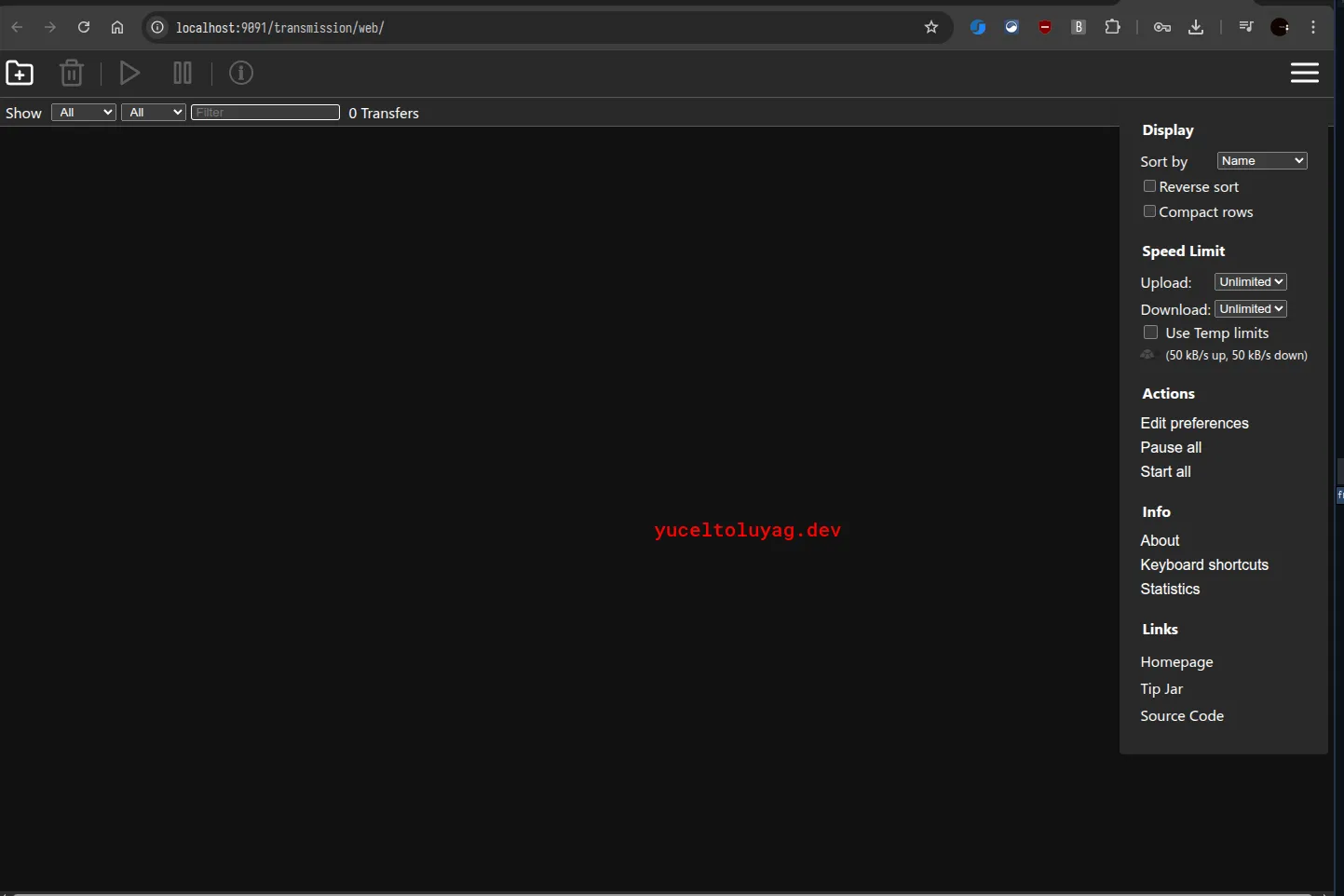
After starting Transmission, you can also access the web interface. The web interface works through the following URL in your internet browser:
http://localhost:9091
By default, the Transmission web interface is only accessible from localhost. You may need to edit the configuration file to make it accessible from outside.
3. Step: Transmission Configuration#
To start using Transmission, you may need to edit the configuration file. The configuration file is generally saved as settings.json and located in the following directory:
~/.config/transmission-daemon/settings.json
3.1 Enabling Web Interface#
If you want to access the web interface, you need to edit the settings.json file. You can enable the web interface by setting the following parameters to true:
"rpc-enabled": true,
"rpc-bind-address": "0.0.0.0",  // 0.0.0.0 for external access
"rpc-port": 9091,  // Port to connect to web interface
"rpc-whitelist": "127.0.0.1",  // For local network access
"rpc-whitelist-enabled": true
3.2 Speed Limits and Other Settings#
You can also use the configuration file to limit download and upload speeds through Transmission. For example:
"download-limit": 1000000,  // 1 MB/s download speed
"upload-limit": 1000000,    // 1 MB/s upload speed
4. Step: Running Transmission as System Service#
If you want Transmission to start automatically at every boot, you can configure it as a system service.
4.1 Creating Systemd Service#
You can start Transmission as a systemd service by following the steps below.
- Create Service File:
sudo nano /etc/systemd/system/transmission-daemon.service
- Edit Service File: The content of the service file should be as follows:
  [Unit]
  Description=Transmission Daemon
  After=network.target

  [Service]
  User=yourusername
  ExecStart=/usr/bin/transmission-daemon --foreground --no-daemon
  ExecStop=/usr/bin/transmission-daemon --stop
  Restart=always

  [Install]
  WantedBy=multi-user.target
- Start and Enable Service: After saving this service file, you can start and enable the service with the following commands:
  sudo systemctl enable transmission-daemon
  sudo systemctl start transmission-daemon
5. Step: Managing Torrent Files#
Managing your torrent files on Transmission is quite simple. You can add, download, and share torrents using either command line or web interface.
5.1 Adding Torrent via Web Interface#
To add a torrent via web interface:
- Go to
http://localhost:9091in your browser. - Click the "Add" button and upload the torrent file.
- Start the download process.
5.2 Adding Torrent via Command Line#
To add a torrent file from command line:
transmission-remote -a /path/to/your/torrent/file
Conclusion#
Installing and configuring Transmission on Arch Linux is a quite simple process. In this guide, you learned in detail how to run and configure Transmission with both command line (CLI) and graphical user interface (GUI). Now you can easily download and share torrent files with Transmission.
If you have any other questions or encountered any points where you got stuck in the steps, you can ask your questions in the comments section!
Comments