How to Set Automatic Lock Screen When Waking from Sleep Mode with i3lock?#
If you're using Linux and want your screen to automatically lock when your computer wakes from sleep mode, you're in the right place. In this guide, I'll explain how to do this with the popular screen locker i3lock (specifically i3lock-color).
Security is important, especially when you leave your computer unattended even for a short time. Here's the solution: an automatic screen lock system that works with systemd. 👇
📦 Preparation: Disable Unnecessary Screen Lockers#
The first step is to prevent automatic activation of existing screen lockers on your system. I'm using the KDE desktop environment (on Arch Linux), so I configured the KScreenLocker settings as follows:
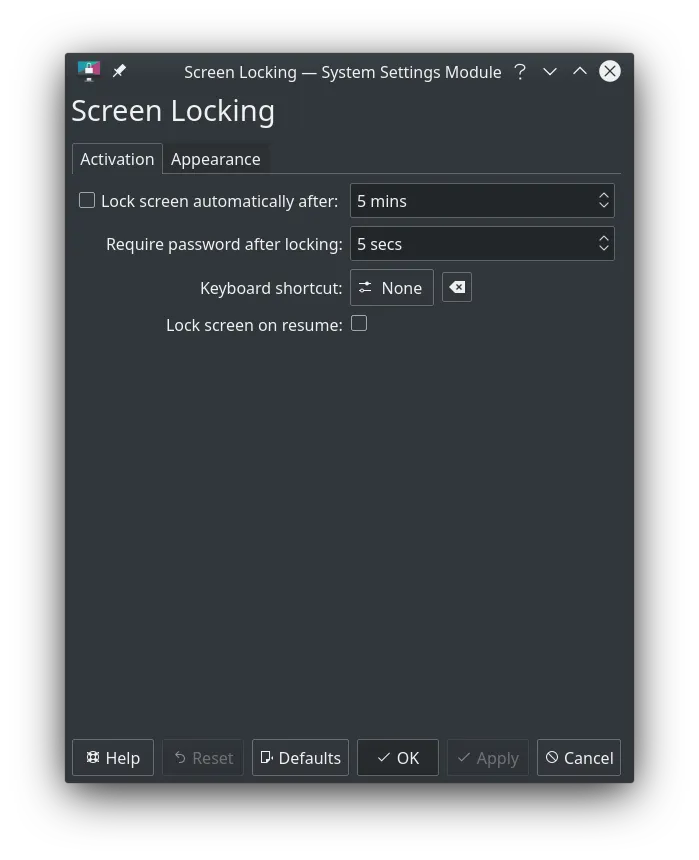 ⚠️ Make sure options like "Automatically lock" and "lock when resuming" are not checked.
Then make sure i3lock is installed on your system. My recommendation: prefer i3lock-color. It provides more customization options.
For Arch-based systems#
yay -S i3lock-color # For Arch-based systems
For Debian-based systems#
sudo apt install autoconf gcc make pkg-config libpam0g-dev libcairo2-dev libfontconfig1-dev libxcb-composite0-dev libev-dev libx11-xcb-dev libxcb-xkb-dev libxcb-xinerama0-dev libxcb-randr0-dev libxcb-image0-dev libxcb-util0-dev libxcb-xrm-dev libxkbcommon-dev libxkbcommon-x11-dev libjpeg-dev libgif-dev
Fedora#
sudo dnf install -y autoconf automake cairo-devel fontconfig gcc libev-devel libjpeg-turbo-devel libXinerama libxkbcommon-devel libxkbcommon-x11-devel libXrandr pam-devel pkgconf xcb-util-image-devel xcb-util-xrm-devel
20.04 LTS$/20.04 LTS
sudo apt install autoconf gcc make pkg-config libpam0g-dev libcairo2-dev libfontconfig1-dev libxcb-composite0-dev libev-dev libx11-xcb-dev libxcb-xkb-dev libxcb-xinerama0-dev libxcb-randr0-dev libxcb-image0-dev libxcb-util-dev libxcb-xrm-dev libxkbcommon-dev libxkbcommon-x11-dev libjpeg-dev
🔐 Step 1: Create Lock Script#
First, let's create a bash script containing the screen locking commands:
mkdir -p ~/scripts
nano ~/scripts/i3lock.sh
The content will be like this:
#!/bin/bash
i3lock # With parameters you want to use. You can see options with i3lock -h
Save the file and make it executable:
chmod +x ~/scripts/i3lock.sh
⚙️ Step 2: Define systemd Service#
Now, we'll create a systemd service that will automatically run the above script when exiting sleep mode.
sudo nano /etc/systemd/system/wakelock@.service
And paste the following content:
[Unit]
Description=Lock screen when exiting sleep mode
Before=sleep.target suspend.target

[Service]
User=%i
Type=forking
Environment=DISPLAY=:0
ExecStart=/home/%i/scripts/i3lock.sh

[Install]
WantedBy=sleep.target suspend.target
This configuration identifies the X session with the DISPLAY=:0 definition and runs the script for the specified user.
🚀 Step 3: Enable Service#
Use the following command to enable and immediately start the service:
sudo systemctl enable wakelock@<YOUR_USERNAME> --now
Don't forget to write your own username instead of . Example:
sudo systemctl enable wakelock@yucel --now
After this, whenever your system returns from sleep mode, the i3lock screen locker will automatically activate. 🔒
🔁 How to Apply Configuration Updates?#
If you made changes in the script or service file, you don't need to restart the entire system. Restarting the service with the following command is sufficient:
sudo systemctl restart wakelock@<YOUR_USERNAME>
📝 Conclusion#
In this article, you learned a practical way to make your Linux system more secure with i3lock and systemd. With a minimal but effective configuration, you can have your screen automatically lock when your computer wakes from sleep mode. Such security measures are particularly important on portable devices.
💬 If this guide was helpful to you, you can support me by leaving a comment. I'd be happy to hear your questions or suggestions!
Comments