Creating UEFI Windows 10 Format USB on Linux#
While transitioning from Windows to Linux, creating a format USB with programs like Rufus is quite easy. However, Rufus often doesn't work properly on Linux even when using Wine. Fortunately, there are various applications available on Linux side. One of them is WoeUSB. In this guide, we'll explain how to create a UEFI supported Windows 10 format USB with WoeUSB.
1. Preparation#
Firstly, you should have the following requirements:
- Windows 10 ISO file: If you don't have it, you can download it from the official Microsoft site.
- WoeUSB program: You can install WoeUSB with the following commands:
sudo add-apt-repository ppa:nilarimogard/webupd8
sudo apt update
sudo apt install woeusb
2. Formatting the USB Disk#
To prepare our USB disk, let's follow these steps:
- Format your USB disk.
- Select NTFS as format. (If you use FAT32, you may get errors with large files.)
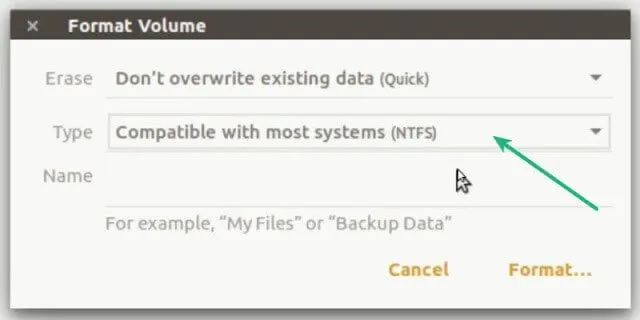
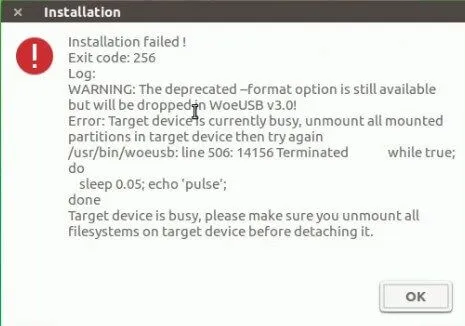
If you format the USB with wrong format, you may encounter an error like below:
3. Using WoeUSB#
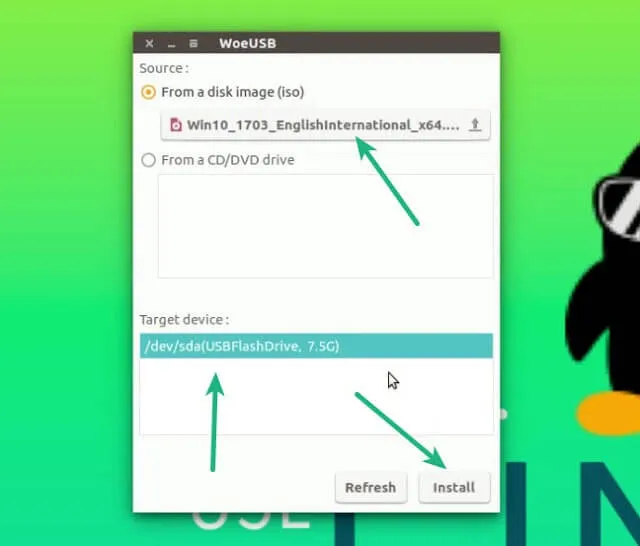
Open WoeUSB and follow these steps:
- Select your ISO file.
- Select your USB disk.
- Start the process by pressing the Start button.
4. Booting from USB#
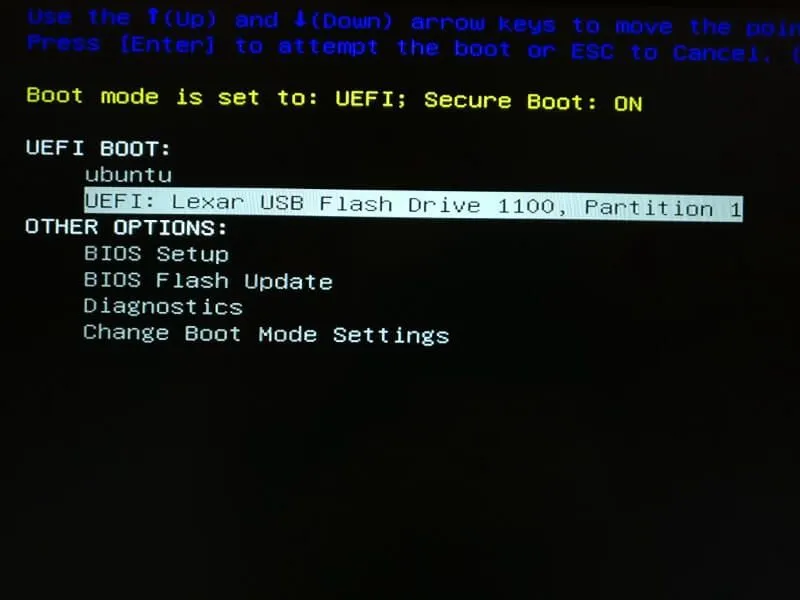
After the process is complete, restart your computer and boot with USB disk from BIOS/UEFI settings.
5. Conclusion#
As you can see, we created a UEFI supported Windows 10 format USB through Linux. If you're new to Linux, instead of making a sudden complete transition, using a dual operating system for a gradual transition may be better. For more information, you can read this article:
If you have questions or errors you received during installation, you can leave a comment. Good work!
Comments