Hello#
Those who follow my stories on Instagram were asking how I installed Arch Linux on WSL. Those who managed to install it were complaining that it kept crashing. I've been using it for a long time. I haven't experienced any crashes, breakdowns, burns or anything similar. 😎
What is WSL (Windows Subsystem Linux)?#
It allows us to run Linux under Windows without third-party software. What's the difference between WSL 1 and WSL 2? Because Hyper-V technology is used in WSL 2, it works more performantly. Although graphical (Desktop) interface is not officially supported yet, many users are installing and using it with DE included. I definitely recommend it to friends who spend their lifetime in the Linux community 🤩
| Feature | WSL 1 | WSL 2 |
|---|---|---|
| Integration between Windows and Linux | ✅ | ✅ |
| Fast boot times | ✅ | ✅ |
| Small resource footprint compared to traditional Virtual Machines | ✅ | ✅ |
| Works with current versions of VMware and VirtualBox | ✅ | ✅ |
| Virtual Machine Management | ❌ | ✅ |
| Full Linux Kernel | ❌ | ✅ |
| Full system call compatibility | ❌ | ✅ |
| Performance on OS file systems | ✅ | ❌ |
Ingredients 🥗#
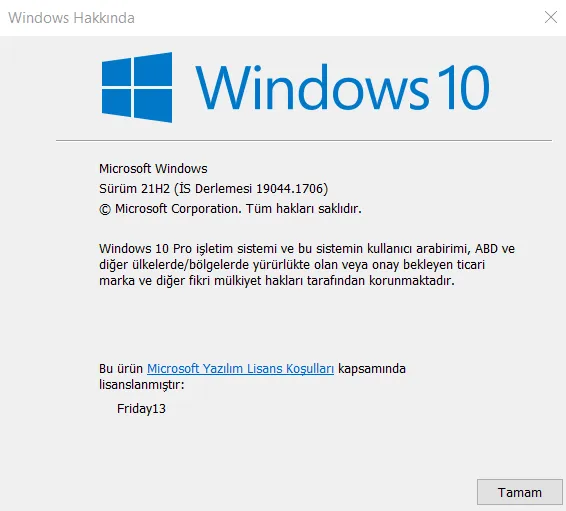
- Your Windows 10 version for WSL 2 should be 2004 or higher (19041) or you should be using Windows 11. You can quickly find out your version like this. Press
Windows + R, typewinverin the screen that appears, it will show you your version number.
-
If your version is old, you can follow the steps here. Install Linux on Windows with WSL
-
WSL
WSL2 Installation#
Start your terminal as Administrator. And enter the following command.
wsl --install
output
Installing: Virtual Machine Platform

Virtual Machine Platform has been installed.

Installing: Windows Subsystem for Linux

Windows Subsystem for Linux has been installed.

Downloading: WSL Kernel

Installing: WSL Kernel

WSL Kernel has been installed.

Downloading: Ubuntu

The requested operation was successful. Changes will not be effective until the system is rebooted.
Then restart the system 👀 After your computer restarts, the WSL2 kernel update package and Ubuntu Linux distribution will be installed automatically. The installation time will vary depending on your internet speed. Don't worry about freezing and close the terminal 🤡
After the installation is complete, it will ask you to create a username and password. Fill in those sections.
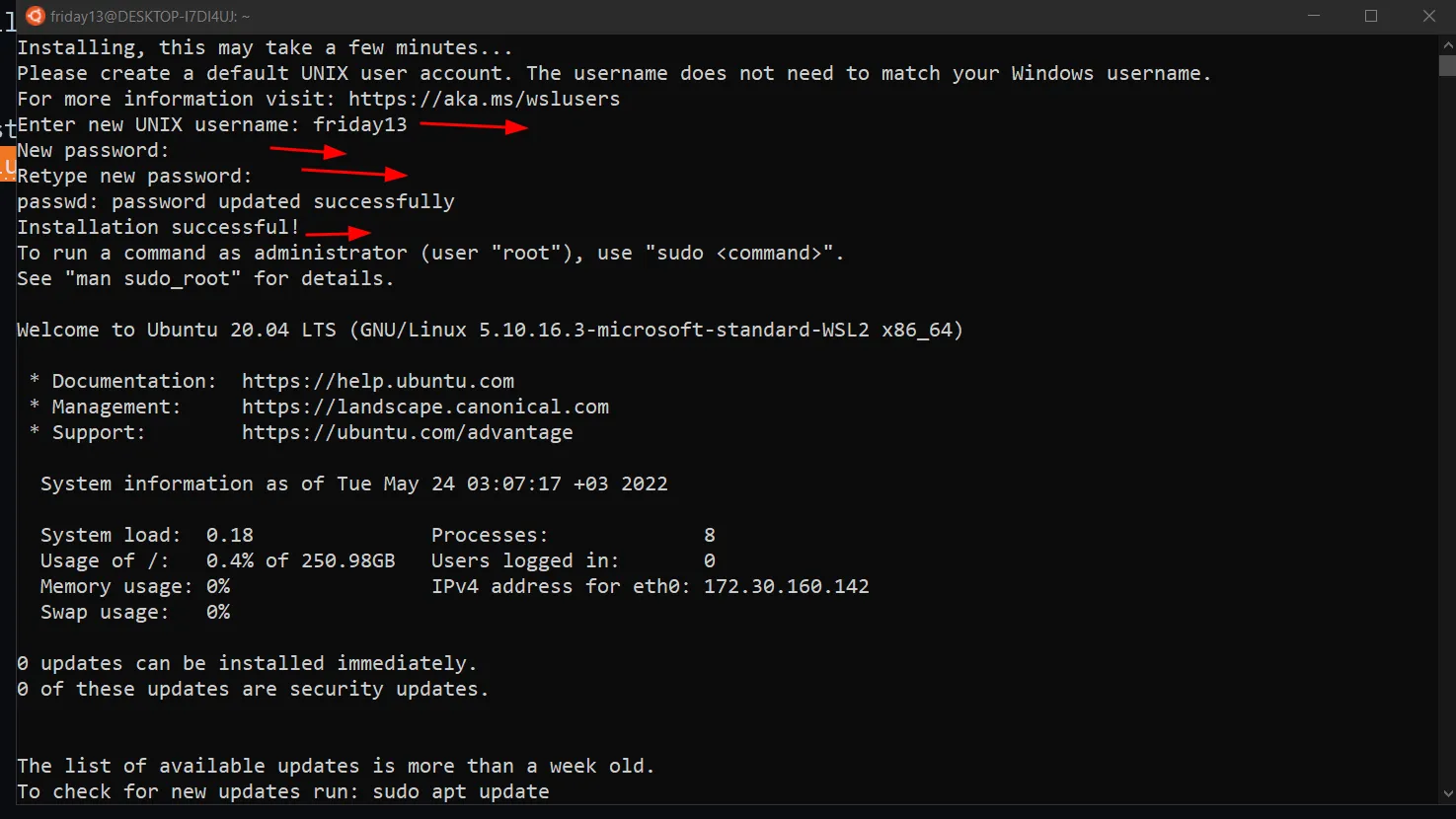
Enter new UNIX username: enterusername

New password:Enter Password

Retype new password: Re-enter Your Password
output
Installing, this may take a few minutes...

Please create a default UNIX user account. The username does not need to match your Windows username.

For more information visit: https://aka.ms/wslusers

Enter new UNIX username: friday13

New password:

Retype new password:

passwd: password updated successfully

Installation successful!

To run a command as administrator (user "root"), use "sudo <command>".

See "man sudo_root" for details.


Welcome to Ubuntu 20.04 LTS (GNU/Linux 5.10.16.3-microsoft-standard-WSL2 x86_64)


* Documentation: https://help.ubuntu.com

* Management: https://landscape.canonical.com

* Support: https://ubuntu.com/advantage


System information as of Tue May 24 03:07:17 +03 2022


System load: 0.18 Processes: 8

Usage of /: 0.4% of 250.98GB Users logged in: 0

Memory usage: 0% IPv4 address for eth0: 172.30.160.142

Swap usage: 0%


0 updates can be installed immediately.

0 of these updates are security updates.


The list of available updates is more than a week old.

To check for new updates run: sudo apt update


This message is shown once once a day. To disable it please create the

/home/friday13/.hushlogin file.
Our WSL installation is complete up to this point. Now you can see the Ubuntu distribution in your terminal tab.
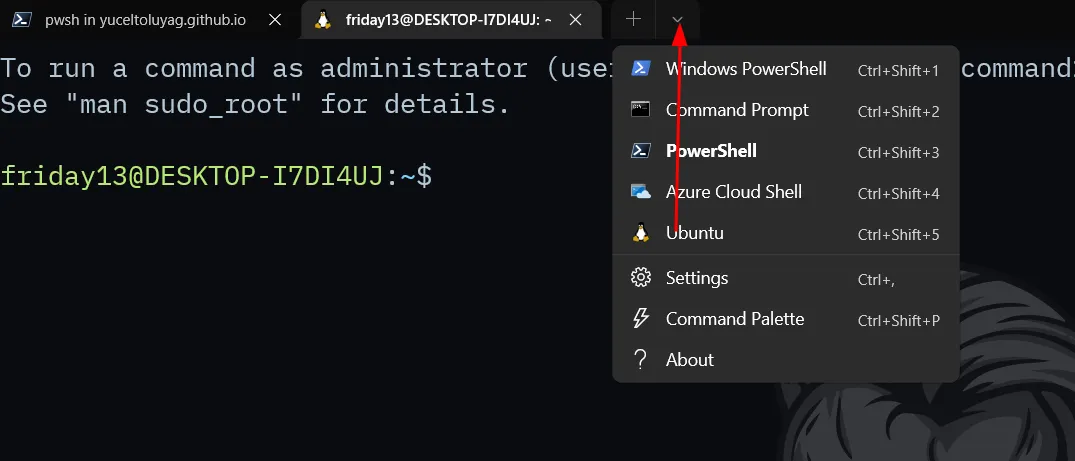
As usual, let's update our ubuntu 🤭
sudo apt update && sudo apt upgrade
Archlinux Installation#
- Run the
wsl --set-default-version 2command. Some users can do this by skipping the above parts 😏 If you're curious about which WSL version your system is using
wsl -l -v
output
NAME STATE VERSION

* Ubuntu Running 2
type the command to see which distro is using which version.
-
Go to the ArchWSL repository and download the latest version. (Arch.zip)
-
Create a folder named
archlinuxunder theCdirectory. -
Extract the file you downloaded from the zip. Copy the two files named
Arch.exeandrootfs.tar.gzinside it and paste them into theC:\archlinuxfolder. -
Run Archlinux.exe.
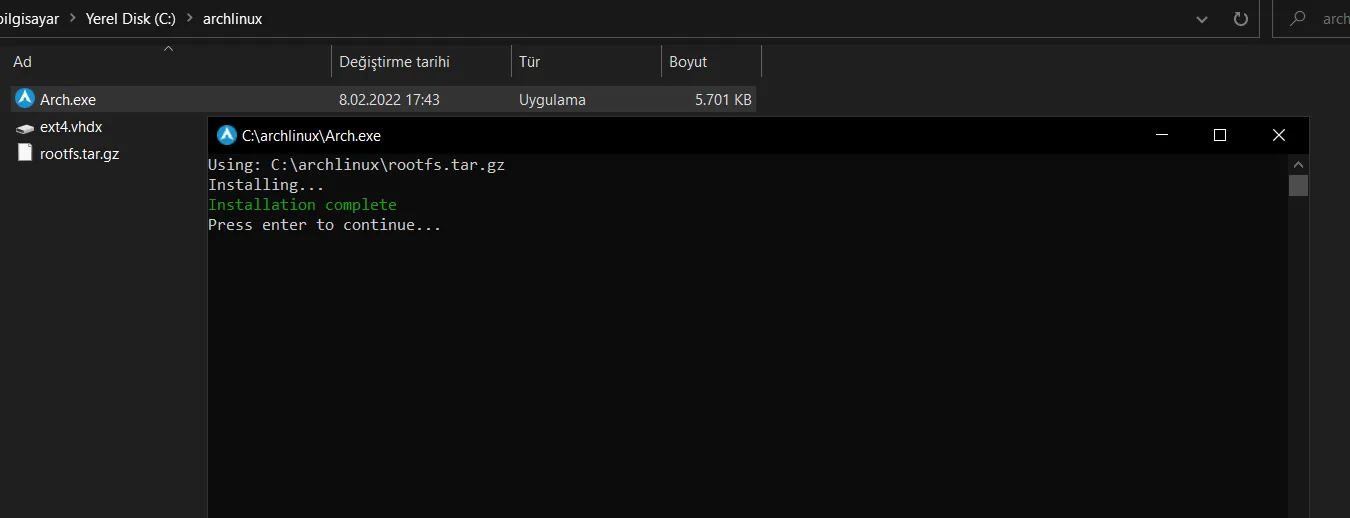
- After the installation is complete, start Arch Linux from your terminal.
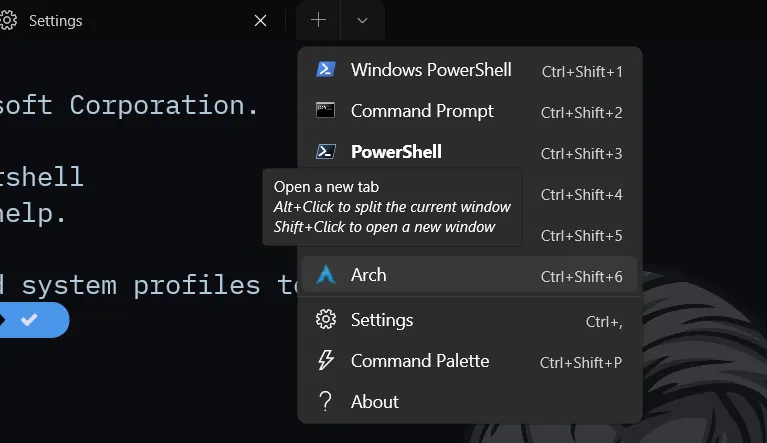
- Let's create a user immediately and give ourselves sudo privileges 🤖 Friday13 is my native and national nickname. You can write ali or mehmet there, write whatever you want ☠️
useradd -m -g users -G optical,storage,wheel,video,audio,users,power,network,log -s /bin/bash friday13 #ENTER THE USERNAME YOU WILL CREATE#
passwd friday13 #set the password for the user you created.#
groupadd sudo #let's add sudo group#
nano /etc/sudoers
we open our file and add the user we created as shown in the picture.
%wheel ALL=(ALL) NOPASSWD:

%sudo ALL=(ALL) ALL
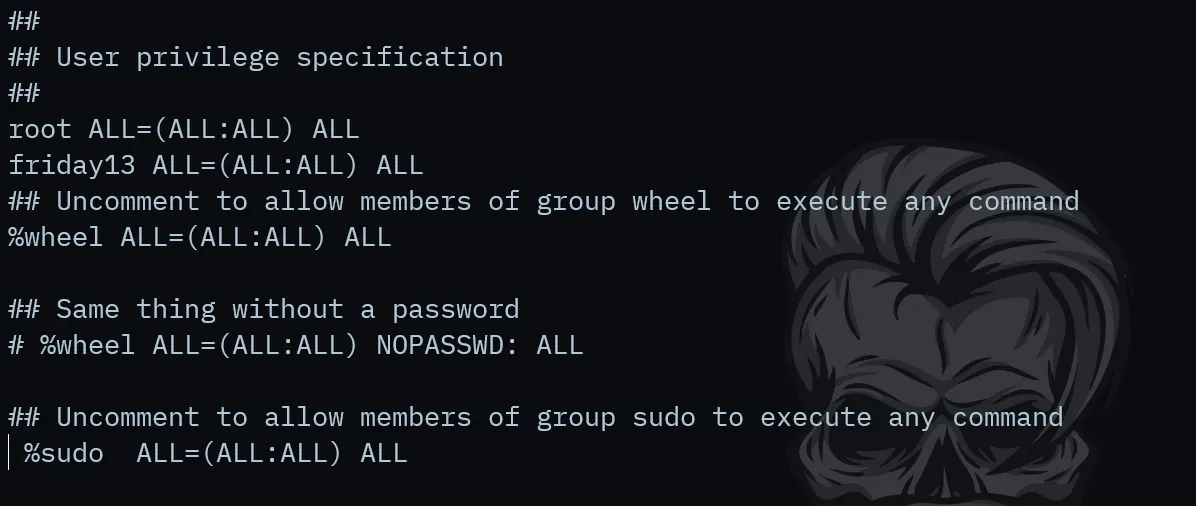 We are removing the hash (#) signs at the beginning of these lines. Press F3 then enter and F2 to exit.
- To activate the user we created as default when the system starts
(Warning you will enter these commands not in the Arch terminal, but in the normal terminal. 🎃)
cd C:\archlinux #go to directory

Arch.exe config --default-user friday13

Then close all open terminals and open them again, select Arch from the Arch tab. Tada :)
 After that, I don't know if you run horses or make camels jump over ditches : ) Hang out as you please.
How to Import Your Local Files.#
If you want to import your existing files into Arch. Press Windows + R keys, type \\wsl$, now you're in the file directory 🤙
RAM and CPU Management#
- List the operating systems running active on the system with this command. 👨💻
wsl --list --verbose
- Then we shutdown WSL.
wsl --shutdown
- Go to your user directory
C:\Users\<YourUsername>and create a file named.wslconfig. And fill the inside of the file like this:
# Settings apply to all Linux distributions running on WSL 2

# You can see RAM memory in wsl2 with "free -m".

[wsl2]


# Limits VM memory to use maximum 12 GB, by default 50% of RAM

memory=12GB


# Sets VM to use 8 virtual processors (Adjust according to your core count)

processors=4


# Sets swap storage amount to 4 GB, by default 25% of available RAM

# You can write 0 if you don't want to use it.

swap=4GB
Don't forget to change these settings according to your system specifications..
Packages and Customization#
-
I edited my
/etc/pacman.conffile. -
sudo pacman -S git openssh base base-devel wget htop neovim curl ruby nodejs pythonI installed the basic need packages. -
When you see this warning while installing packages
fakeroot is in IgnorePkg/IgnoreGroup. Install anyway? [Y/n] n\*\*
definitely don't remove it keep it in mind. Whenever you see it, press n 🐧
- I installed YAY package manager
git clone https://aur.archlinux.org/yay-git.git

cd yay-git/

makepkg -sri

cd ..

rm -rf yay-git/

yay -Syyu
You can reach my settings from my Github page.
Comments