Series: mutt
Part 1/2Hello! In the first part of this article, we will configure our Mutt settings, which is a great email client. 😊
Required Software#
The following software is required to use mutt:
- Mbsync/isync
- Msmtp
- Mu
- Vim or derivatives
- NeoMutt
- Vdirsyncer
- Khard
- Ripmime
- UrlScan
- W3m
- Gpgme
What Do the Above Programs Do?#
- mbsync: Synchronizes multiple IMAP accounts on your local machine.
- msmtp: Allows you to send emails. 😁
- mu: Indexes your emails and provides a search interface for all your emails.
- vim: Editor used for writing emails. I use Neovim.
- neomutt: Our email client. 😇
The above software are the tools required for us to receive and send emails. For operations such as viewing attachments in emails, examining contacts, we use the following tools:
- vdirsyncer: Synchronizes your contacts.
- khard: Makes contacts synchronized with Vdirsyncer available in neomutt.
- ripmime: Used to save email attachments.
- urlscan: Opens URLs in your preferred browser.
- w3m: Makes HTML emails readable within mutt.
- gpgme: Used to encrypt emails.
Installation#
You can install the above packages according to your own distribution. For the convenience of Arch Linux users, you can install all packages with the following command. 🤣
yay -S msmtp msmtp-mta isync mu-git neovim neomutt-git vdirsyncer-git khard ripmime urlscan w3m gpgme
Let's create our folder structure. Since I don't like the folder structure in the home directory, I create it as hidden files. This is completely up to your preference. 😀 The point you need to pay attention to: Avoid using Turkish characters (ç, ı, ü, ğ, ö, ş, İ, Ğ, Ü, Ö, Ş, Ç).
We should also pay attention to potential problems with Gmail. Due to the security measures taken by Gmail, we may need to make some settings. If you encounter a problem with Gmail, let's try to find a solution by specifying it in the comments.
mkdir .Contacts
mkdir .Mail
mkdir .Mail/ytoluyagmail
mkdir .Mail/ytoluyagyandex
mkdir .Mail/yuceltoluyaghotmail
Let's create another file in the home directory:
touch ~/.mbsyncrc
In this file, we will configure our email accounts to be synchronized via IMAP. For example, for our Gmail account:
#################################
######## My Gmail Account ########
#################################

IMAPAccount gmail
Host imap.gmail.com
User ytoluyag@gmail.com
PassCmd "/usr/bin/gpg2 -q --for-your-eyes-only --no-tty -d ~/.password-store/ytoluyag.gpg"
SSLType IMAPS
CertificateFile /etc/ssl/certs/ca-certificates.crt
SSLVersions SSLv3
AuthMechs LOGIN

# Remote storage

IMAPStore ytoluyag-remote
Account gmail

# Local storage

MaildirStore ytoluyag-local
Path ~/.Mail/ytoluyagmail/
Inbox ~/.Mail/ytoluyagmail/INBOX

Channel ytoluyag-inbox
Master :ytoluyag-remote:"[Gmail]/All Mail"
Slave :ytoluyag-local:INBOX
Create Both
Expunge Both

Channel ytoluyag-archive
Master :ytoluyag-remote:"[Gmail]/Starred"
Slave :ytoluyag-local:archive
Create Both
Expunge Both

Channel ytoluyag-drafts
Master :ytoluyag-remote:"[Gmail]/Drafts"
Slave :ytoluyag-local:drafts
Create Both
Expunge Both

Channel ytoluyag-sent
Master :ytoluyag-remote:"[Gmail]/Sent Mail"
Slave :ytoluyag-local:sent
Create Both
Expunge Both

Channel ytoluyag-trash
Master :ytoluyag-remote:"[Gmail]/Trash"
Slave :ytoluyag-local:trash
Create Both
Expunge Both

Channel ytoluyag-junk
Master :ytoluyag-remote:"[Gmail]/Spam"
Slave :ytoluyag-local:junk
Create Both
Expunge Both

Group ytoluyag
Channel ytoluyag-inbox
Channel ytoluyag-archive
Channel ytoluyag-drafts
Channel ytoluyag-sent
Channel ytoluyag-trash
Channel ytoluyag-junk
Here, we directed the relevant emails to the folders you created. Remote and local concepts: They are the extensions of your emails. For example, when you click on the Spam folder in Gmail, it redirects to the trash link. The remote part is very important.
You can configure the password part as follows:
#PassCmd "security find-internet-password -s 'imap.gmail.com' -a 'ytoluyag@gmail.com' -w"
PassCmd "/usr/bin/gpg2 -q --for-your-eyes-only --no-tty -d ~/.password-store/ytoluyag.gpg"
Now, let's create another file:
touch ~/.msmtprc
In this file, we make mail connection settings. If you don't know the information such as imap, port, ssl of your mail connection, you can look at the following resources:
account ytoluyagmail
host smtp.gmail.com
port 465
protocol smtp
auth on
user ytoluyag@gmail.com
from ytoluyag@gmail.com
tls on
tls_starttls off
tls_trust_file /etc/ssl/certs/ca-certificates.crt

account yuceltoluyaghotmail
host smtp.office365.com
port 587
protocol smtp
auth on
user yuceltoluyag@hotmail.com.tr
from yuceltoluyag@hotmail.com.tr
tls on
tls_starttls on
tls_trust_file /etc/ssl/certs/ca-certificates.crt
Let's test these settings:
echo "Testing Mail" | msmtp -a ytoluyagmail ytoluyag@gmail.com
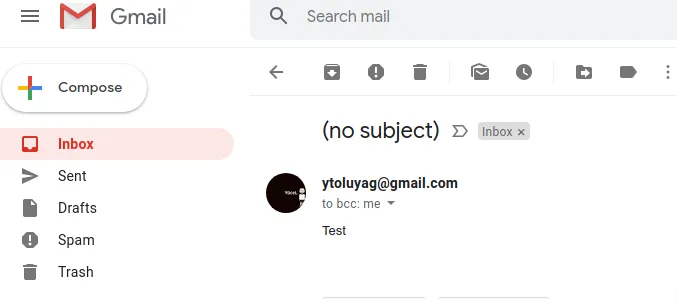 If you get an error, you can review again for the solution. You should especially consider Gmail's two-factor authentication requirements.
If your connection is successful, let's start Muttr.
neomutt
Here, you may need to correct the error logs you will see. If you are getting an error, you can review your file again.
mbsync -a
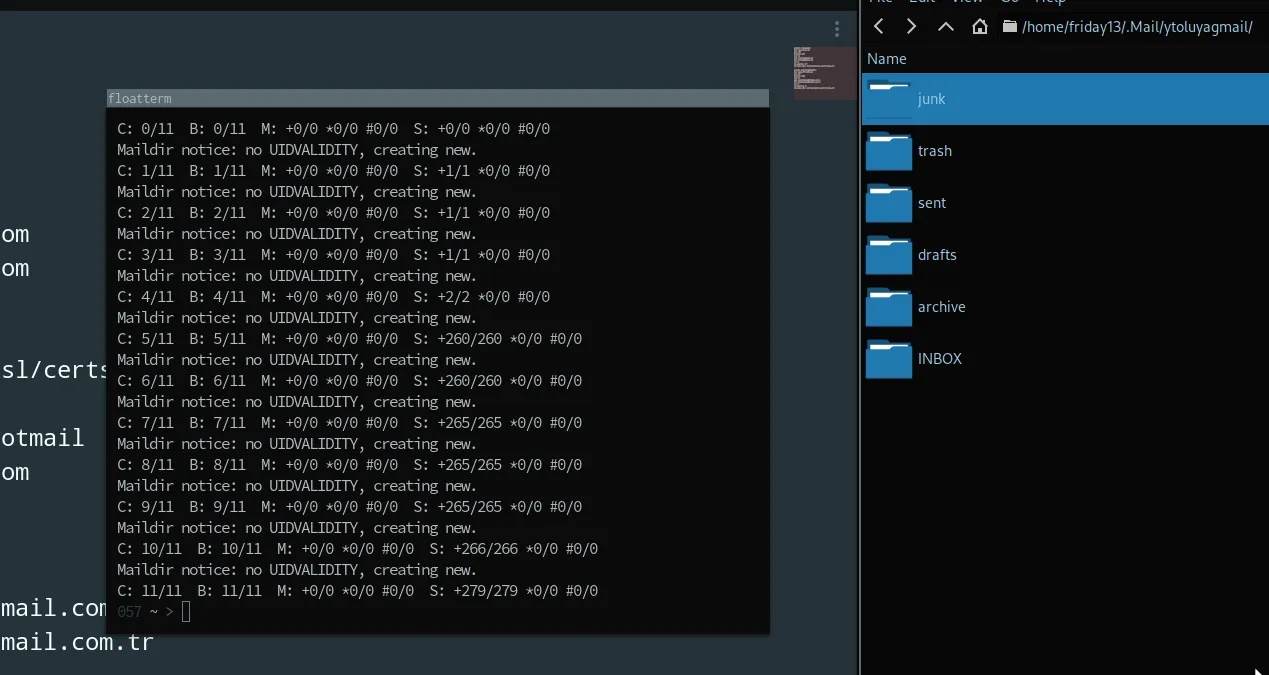 In Part 2 of this article series, we will continue configuring your email client in more detail. 🙂
Comments