Hello! Today I'll share some amazing plugins and themes I use on the Sublime Text editor with you. 🥳
Sublime Text Plugin Installation#
First of all, I want to state that I'm using Sublime Text 3 version. You can follow these steps to install packages on the editor: Open view -> show console menu and paste the necessary codes according to your version, then press Enter. After the package is installed, you can open the package manager with Ctrl + Shift + P combination and write Install then press Enter to select the package you want to install.
Easy Installation Method Update: You can easily install the package manager by pressing Ctrl + Shift + P and selecting 'Install Package Manager' option.
You can get my settings from GitHub: Sublime Repo and Alternative Settings
{
  "auto_complete_triggers": [
    {
      "characters": "<",
      "selector": "text.html"
    },
    {
      "characters": ".",
      "selector": "source.js"
    }
  ],
  "theme": "Agila Neon.sublime-theme",
  "color_scheme": "Packages/Agila Theme/Agila Neon Monocyanide.tmTheme",
  "bold_folder_labels": true,
  "caret_extra_width": 2,
  "caret_style": "smooth",
  "fade_fold_buttons": false,
  "font_face": "Inconsolata",
  "font_size": 16,
  "highlight_line": true,
  "highlight_modified_tabs": true,
  "ignored_packages": ["JavaScript", "Vintage"],
  "indent_guide_options": ["draw_normal", "draw_active"],
  "line_padding_bottom": 1,
  "line_padding_top": 1,
  "show_line_endings": true,
  "tab_size": 4,
  "theme": "Agila.sublime-theme",
  "theme_agila_sidebar_light_icons": true,
  "theme_agila_sidebar_selected_entry_yellow": true,
  "theme_agila_auto_complete_yellow": true,
  "theme_agila_active_tab_entry_yellow": true,
  "translate_tabs_to_spaces": true,
  "trim_trailing_white_space_on_save": true,
  "word_separators": "./\\()\"':,.;<>~!@#$%^&*|+=[]{}`~?",
  "word_wrap": false
}
EMMET#
Emmet is an amazing plugin that can significantly increase your coding speed. However, it's not recommended for those new to coding.
#page>div.logo+ul#navigation>li*5>a{Item $} #output will be as follows.
<div id="page">
  <div class="logo"></div>
  <ul id="navigation">
    <li><a href="">Item 1</a></li>
    <li><a href="">Item 2</a></li>
    <li><a href="">Item 3</a></li>
    <li><a href="">Item 4</a></li>
    <li><a href="">Item 5</a></li>
  </ul>
</div>
Alignment#
If you have an obsession with order, this plugin is perfect for you! You can use it to align and organize your code. You can easily make adjustments by pressing Ctrl + Alt + A.
SublimeGit#
SublimeGit is an excellent plugin that provides Git integration for Sublime Text. You can visit SublimeGit Documentation page for documentation.
GitGutter#
GitGutter is a plugin that shows the changes you made in your project. You can think of it as the Sublime version of git status command.
GitHubinator#
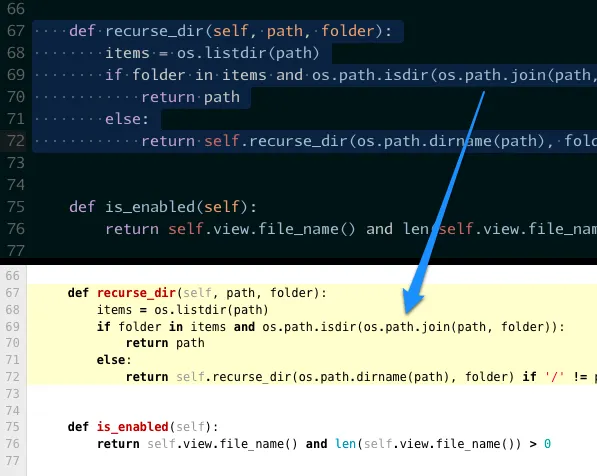
This plugin helps you search the selected area directly in the GitHub repo. The question "Where did I write this?" is now eliminated.
GitOpenChangedFiles#
The difference from GitGutter is that it shows only the lines that have been changed and can search within the repo. You can quickly use it by pressing Ctrl + Shift + O.
SublimeLinter#
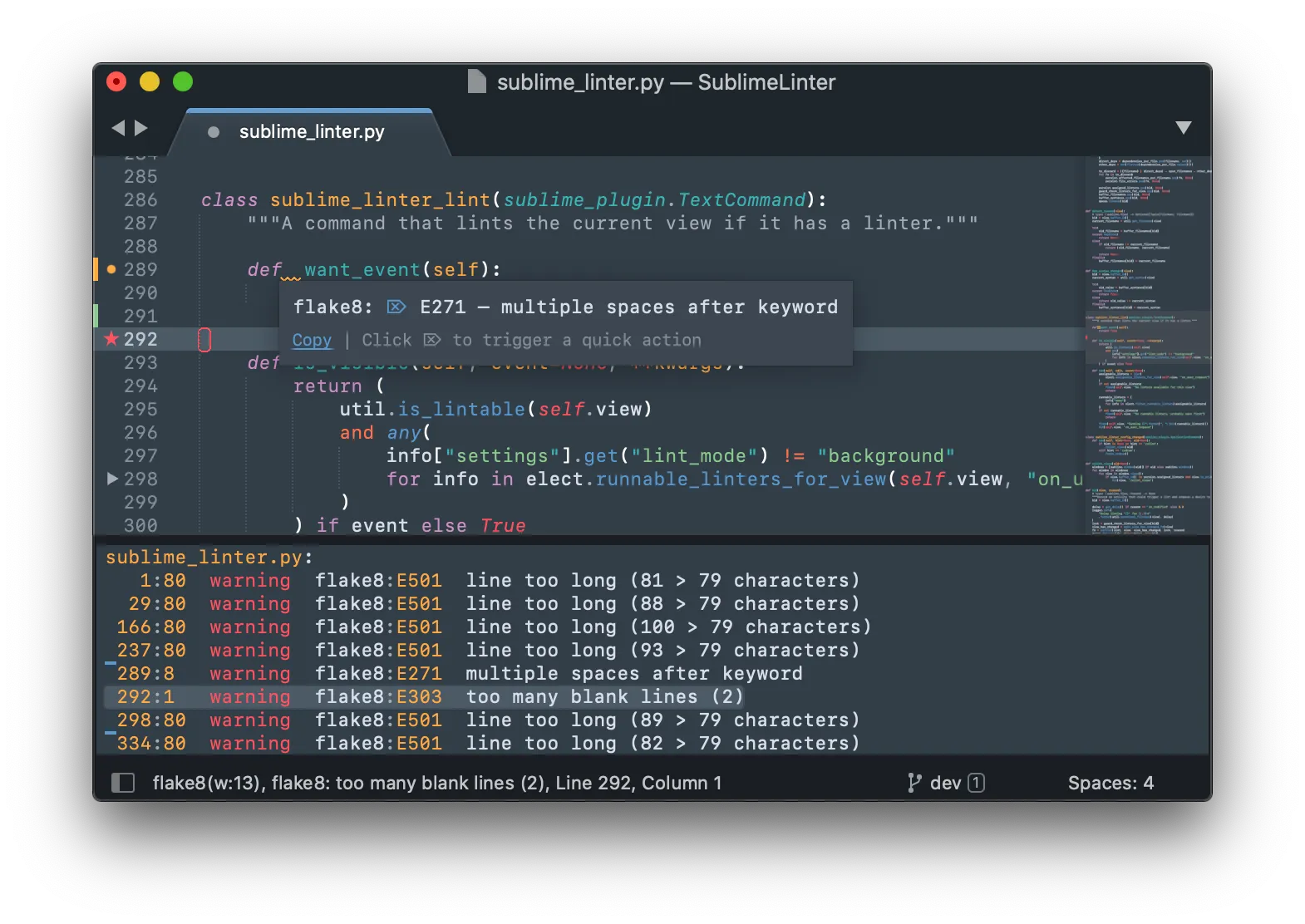
SublimeLinter is a great tool for showing code errors and warnings. Be sure to check out SublimeLinter Documentation.
ChangeQuotes#
This plugin makes it very easy to change double quotes to single quotes, especially. It's a perfect helper for quick operations.
SidebarEnhancements#
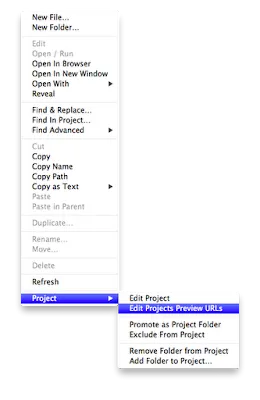
With this plugin, many additional features are added when you right-click on the sidebar on the left.
BracketHighlighter#
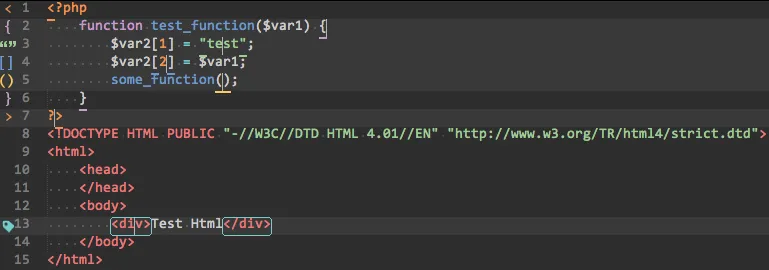
This plugin allows you to see where the tag or parenthesis you selected opens and closes.
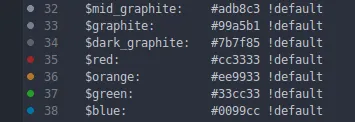
Gutter Color#
You can easily make your color selections without using an extra program. Also, it's possible to see your colors directly using Color Highlighter.
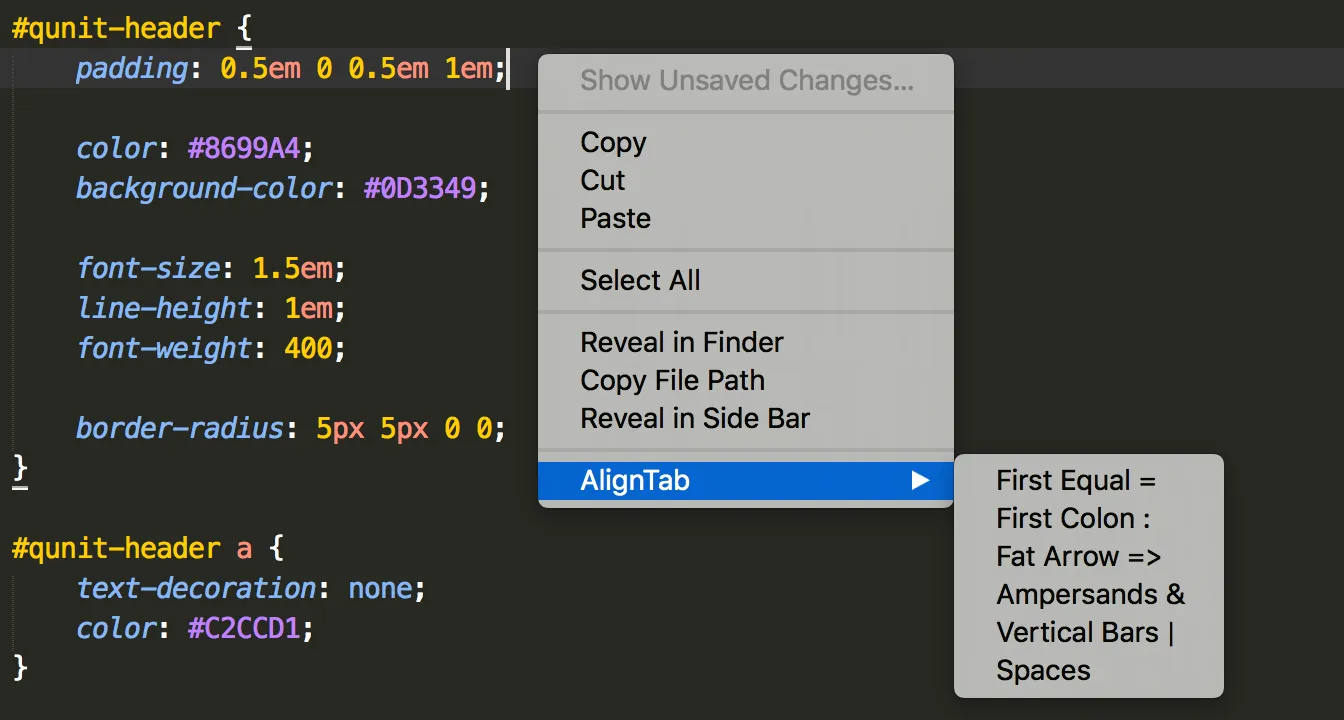
AlignTab#
This plugin that mimics tabular alignment in Vim editor offers many features.
AutoFileName#
It automatically completes your file paths. When incorrect file paths are written, no suggestions come, thus reducing errors.
HTML-CSS-JS Prettify#
A plugin used to format HTML, CSS, JavaScript and JSON code.
DocBlockr#
This plugin allows you to add comments to your code blocks.
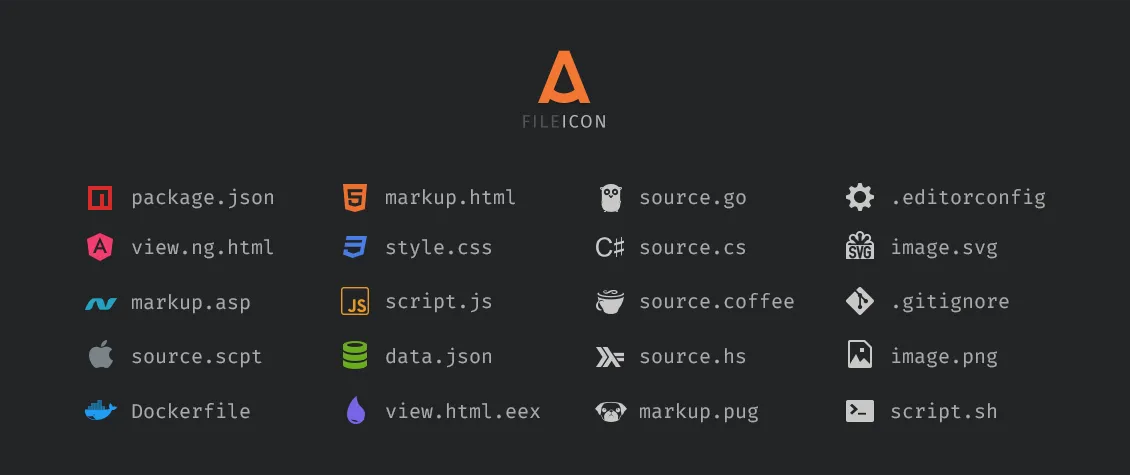
A File Icon#
Adds icons according to file extensions, making your files look more organized.
Theme#
I'm using Material Theme: Material Theme GitHub Page.
To get information about new themes and plugins I use, visit GitHub Repo
My Settings#
{
"always_show_minimap_viewport": true,
"bold_folder_labels": true,
"color_scheme": "Packages/MaterialTheme/schemes/Material-Theme.tmTheme",
"font_face":"Hack",
"font_options": ["gray_antialias",
"subpixel_antialias"],
"font_size": 18,
"ignored_packages": ["Vintage"],
"indent_guide_options": ["draw_normal",
"draw_active"],
"line_padding_bottom": 3,
"line_padding_top": 3,
"material_theme_accent_acid-lime": true,
"material_theme_accent_blue": true,
"material_theme_accent_brba": true,
"material_theme_accent_bright-teal": true,
"material_theme_accent_cyan": true,
"material_theme_accent_graphite": true,
"material_theme_accent_indigo": true,
"material_theme_accent_lime": true,
"material_theme_accent_orange": true,
"material_theme_accent_pink": true,
"material_theme_accent_purple": true,
"material_theme_accent_red": true,
"material_theme_accent_scrollbars": true,
"material_theme_accent_sky": true,
"material_theme_accent_titlebar": true,
"material_theme_accent_tomato": true,
"material_theme_accent_yellow": true,
"material_theme_arrow_folders": true,
"material_theme_big_fileicons": true,
"material_theme_bold_tab": true,
"material_theme_bright_scrollbars": true,
"material_theme_bullet_tree_indicator": true,
"material_theme_compact_panel": true,
"material_theme_compact_sidebar": true,
"material_theme_contrast_mode": true,
"material_theme_disable_fileicons": true,
"material_theme_disable_folder_animation": true,
"material_theme_disable_tree_indicator": true,
"material_theme_panel_separator": true,
"material_theme_small_statusbar": true,
"material_theme_small_tab": true,
"material_theme_tabs_autowidth": true,
"material_theme_tabs_separator": true,
"material_theme_titlebar": true,
"material_theme_tree_headings": true,
"overlay_scroll_bars": "enabled",
"theme": "Material-Theme.sublime-theme"
}
Comments