I'm tired of internet service providers (ISPs) snooping on our DNS traffic, wondering "which site did you visit now?" This is precisely why we use a "power user" friendly browser like Vivaldi (I actually wrote extensively about my love for Vivaldi and my entire Linux experience in my Why I Love Vivaldi article), but sometimes default settings fall short.
Today, we're going to set up that famous DoH (DNS over HTTPS) in Vivaldi. In other words, we'll encrypt our DNS queries and pass them through a tunnel that ISPs can't see. And we'll do it using Cloudflare. (Why Cloudflare? Because with its 1.1.1.1 infrastructure, it's the fastest and most stable on the market).
Let's get this setting done so our internet can breathe a little.
Step 1: Up-to-date is a Must (Or is it?)#
First, it is best to make sure Vivaldi is up-to-date. Well, it makes sense. In older versions, these menus might be located elsewhere.
Click the Vivaldi logo in the top left, go to Help > Check for Updates. If it says "You are already at the latest version," let's continue.
Step 2: Finding Settings Without Getting Lost in the Labyrinth#
Now, this part is a bit tricky. Older guides say the setting is under vivaldi://settings/network/. But Vivaldi developers love changing the location of menus.
The most reliable way is this:
- Press
Ctrl + F12on your keyboard (Settings opens). - Type "Secure DNS" directly into the search bar on the left.
- For those who don't want to bother, pasting this into the address bar and hitting Enter also works (provided Vivaldi hasn't removed this command):
vivaldi://settings/privacy/
Short Cut ⚡ Don't get lost in menus. The search box in the settings window is your best friend. Type 'DNS,' and the setting will appear right in front of you.
Step 3: Entering the Cloudflare Server#
We found the setting location; it's usually hidden near the bottom of the "Privacy and Security" tab.
There, you will see the "Use Secure DNS" option. By default, "With your current service provider" is selected (which is exactly what we are trying to escape).
Here's what you need to do in order:
- Select the Cloudflare option. If you want to make custom settings, select the "With Custom" option.
- Choose the Cloudflare option in the box next to or below it:
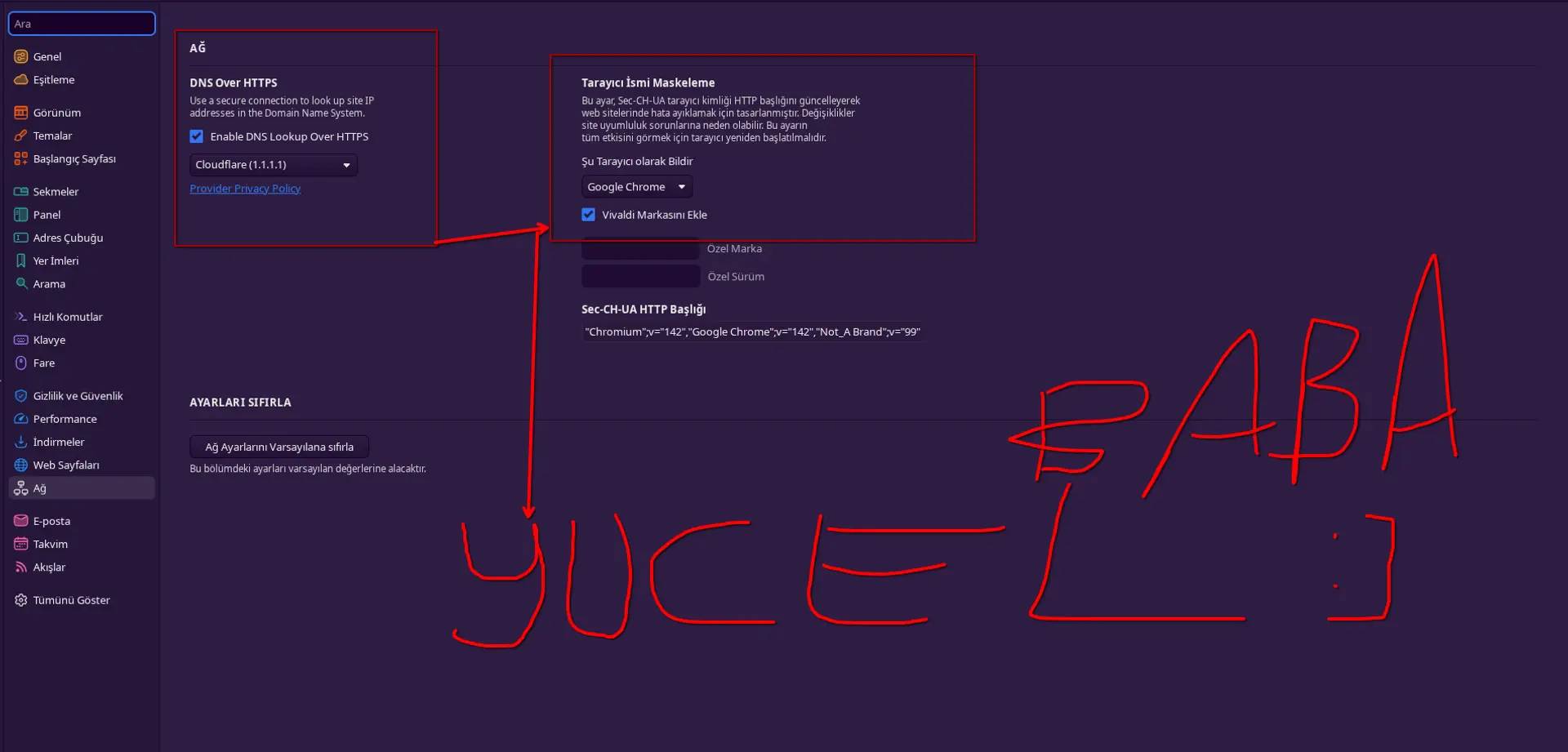
- Alternatively, you can paste this address into the address bar:
https://doh.dns.sb/dns-querybut the risk for this address belongs to you. I use Cloudflare.
You don't need to press Enter or say "Save"; Vivaldi (thanks to the Chromium infrastructure) picks up the setting instantly.
Result: Does it Work?#
We made the setting, but let's not let the suspicion of "What if it's not working?" eat us up. Open a new tab immediately and go to the Cloudflare Help page.
If it says "Yes" in the "Using DNS over HTTPS (DoH)" section, congratulations! Your DNS queries are now going encrypted. Your ISP cannot see which site you visited via DNS (they can see it via IP, but that's a topic for another article; I actually covered a similar privacy and leak issue in my How to Install OpenVPN on AWS EC2 and Fix DNS Leak article 😅).
Sometimes this setting can cut off the internet on corporate networks or some cafe Wi-Fi. In such a case, uncheck the "Use Secure DNS" box and try again. Technology, after all, sometimes requires turning it off and on again.
Enjoy using it freely!
Comments