🍷 What is WinePrefix and Why is it Important?#
If you're using Wine to run Windows games and applications on Linux, you've definitely encountered the WINEPREFIX concept. Thanks to this environment variable, you can create isolated virtual Windows environments for different programs and run them without any problems.
In this guide:
- What is
WINEPREFIX? - How to create it?
- How to install games with different prefixes?
- How to use with practical examples?
winecfg,winetricks,regeditand debugging tips- Integration with Lutris and Steam/Proton 🎯
We show all of them step by step. 🎯
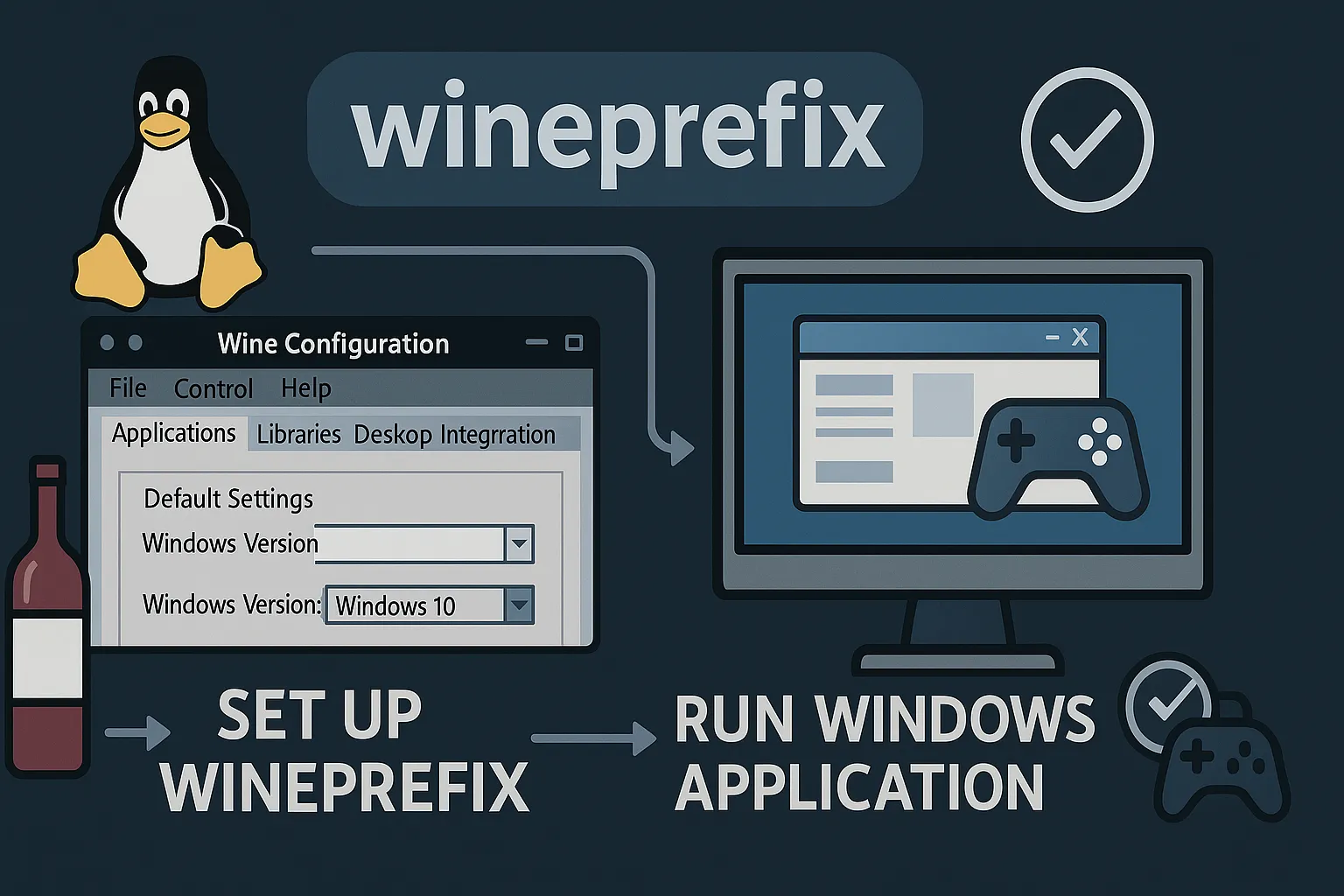
🧠 1. What is WinePrefix?#
WINEPREFIX is an environment variable that specifies which folder Wine should create and run the Windows-like file system.
Each prefix is actually an independent "virtual Windows" folder. This way, you can create different environments for one game with 32-bit compatibility, another with 64-bit compatibility, one with DirectX9 and another with DirectX11.
🎮 Why is it important in games? Because the DLL files, system settings and registry entries that a game needs can conflict with other games.
WINEPREFIXcompletely isolates these problems.
🧱 2. How to See WinePrefix Directory?#
A WINEPREFIX directory usually has the following structure:
~/.wine/ (or specially designated folder)
├── drive_c/         → Virtual C:\ drive
├── system.reg       → System registry
├── user.reg         → User registry
├── userdef.reg      → Default user records
In this structure, any program you install in drive_c works just like in a Windows system.
💡 Default Wine directory:
~/.wineBut we recommend using a different folder for each game:~/wineprefixes/gamenameetc.
🛠️ 3. How to Create WinePrefix?#
🎯 Example: Creating a new WINEPREFIX for PES 2017#
export WINEPREFIX=~/wineprefixes/pes2017
wineboot -u
These two commands:
- Defines a new folder (
~/wineprefixes/pes2017). - Sets up virtual Windows environment in prefix with
wineboot -u.
🛡️ This process creates basic files just like a real Windows installation:
C:\, registry, config files etc.
▶️ 4. Running Applications Through Prefix#
Example: Starting an .exe file in a special prefix#
export WINEPREFIX=~/wineprefixes/pes2017
wine ~/Downloads/Settings.exe
With this command:
Settings.exeapplication runs only in the Windows environment in~/wineprefixes/pes2017.- Registry and installed DLLs are specific to this prefix.
🔄 This way it's possible to run each game in different systems.
🎮 5. Applied Scenario: Installing PES 2017#
Step 1: Create Prefix#
export WINEPREFIX=~/peswine
wineboot -u
Step 2: Customize configurations as needed#
winecfg        # Configure Wine settings
winetricks     # DLL installation tool (e.g. d3dx9)
Step 3: Install the game#
wine setup.exe
If the setup file works on Windows, it should work exactly the same here.
▶️ Starting the Game#
export WINEPREFIX=~/peswine
wine "C:\Program Files\PES2017\pes2017.exe"
🗂️ Wine automatically maps this directory as follows:
"C:\Program Files"→~/peswine/drive_c/Program Files
🧩 6. Regedit and Registry Editing#
You can edit registry settings in Wine with the following command:
WINEPREFIX=~/peswine wine regedit
Here you can see HKEY_LOCAL_MACHINE and HKEY_CURRENT_USER structures just like in many Windows programs, and you can manually add and delete keys.
⚠️ Warning: Incorrect registry edits can break the program's operation.
💡 7. Useful Tips#
| Tip | Explanation |
|---|---|
Use separate WINEPREFIX for each game |
Prevents conflicts and confusion |
Default prefix is ~/.wine |
Uses this if you don't specify anything |
Specify prefix when installing DLLs with winetricks |
WINEPREFIX=... winetricks ... |
🎯 DLL Installation Example:#
WINEPREFIX=~/peswine winetricks d3dx9
🧪 8. Debugging and Log Tracking#
You can use WINEDEBUG to see errors that may occur when running Wine applications:
WINEPREFIX=~/peswine WINEDEBUG=+seh wine pes2017.exe
Also with the winecfg tool:
- DirectX version
- Windows version
- Audio driver
You can change settings like these.
💾 9. Prefix Backup and Copying#
Since each WINEPREFIX is a folder, it can be easily backed up:
tar czvf peswine-backup.tar.gz ~/peswine
On another system, you can extract this backup and use the game directly:
tar xzvf peswine-backup.tar.gz -C ~/
🔄 10. Prefix Management with Lutris#
When installing games through Lutris, WINEPREFIX is automatically created for each game.
The relevant prefix is usually found here:
~/.local/share/lutris/runners/wine/prefix/
But it can be customized. Lutris manages these operations automatically in the background.
🛠️ 11. Using Prefix with Steam/Proton#
Games running with Proton on Steam also use prefix similarly. These prefixes are usually located here:
~/.steam/steam/steamapps/compatdata/APPID/pfx/
Here APPID is the game's Steam App ID. You can intervene with this prefix using tools like regedit, winetricks, winecfg:
WINEPREFIX=~/.steam/steam/steamapps/compatdata/APPID/pfx winetricks corefonts
✅ 12. Quick Command Table#
| Command | Purpose |
|---|---|
export WINEPREFIX=... |
Specifies prefix |
wineboot -u |
Creates new prefix |
wine file.exe |
Runs application |
winetricks dll |
Installs DLL (e.g: d3dx9) |
winecfg |
Configures settings |
wine regedit |
Edits registry |
WINEDEBUG=... |
Shows error logs |
📌 13. Why Should You Use Prefix?#
✅ Advantages:
- 🧩 Isolate incompatible games
- 🔧 Make special configurations
- 💣 Prevent problematic games from affecting the whole system
- 🗂️ Backup each prefix in a separate folder
🔚 Conclusion#
WINEPREFIX is a fundamental concept that everyone running games and applications on Linux should learn.
With this guide, you can now:
- Create your own prefixes,
- Install DLLs,
- Edit registry,
- Use with Lutris and Steam integration,
- Run different games smoothly. ✅
Comments