1. Introduction 🌟#
One of the greatest advantages of Linux users is having a free and customizable working environment. However, sometimes freedom comes at a cost: software incompatibilities and small but annoying problems. 😅
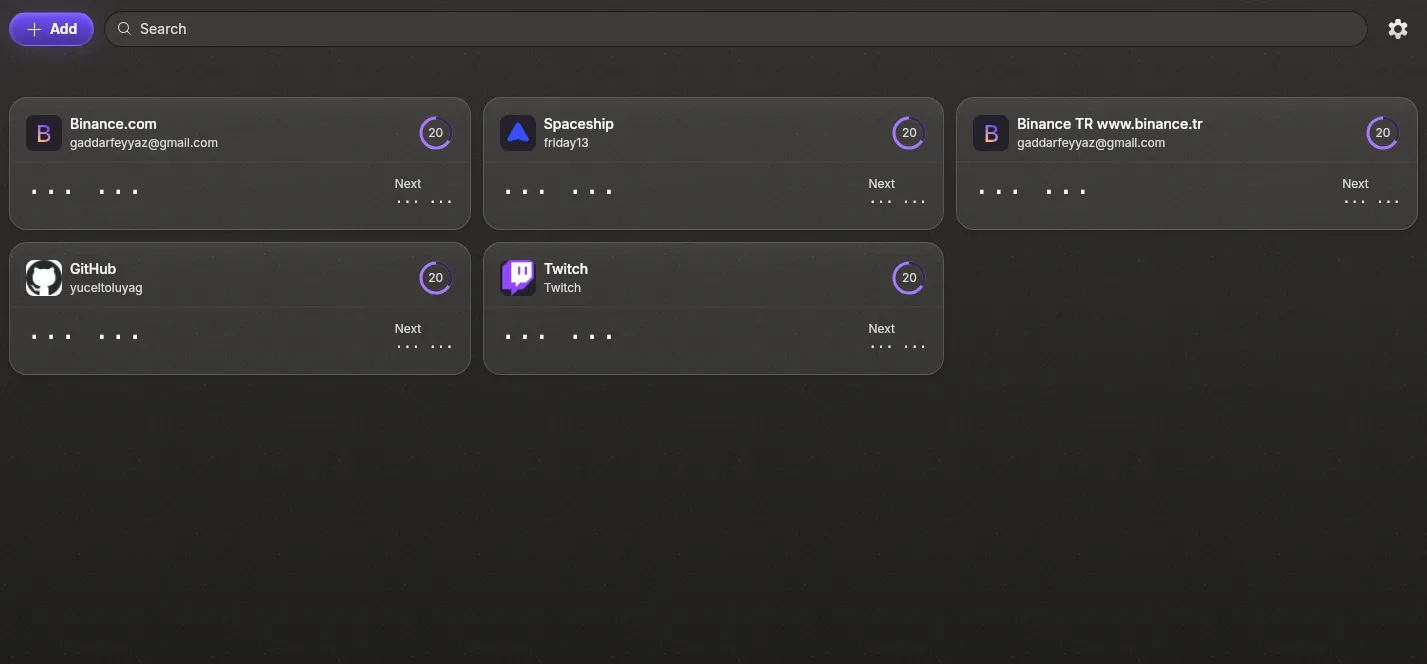
If you're using Proton Authenticator in an X11-based Linux desktop environment and noticed that the buttons are not visible when you open the application, you're not alone. 🤝 The application works and login is possible, but the buttons seem to have become transparent and disappeared. 👻
In this article, you'll find the technical reason for the problem, temporary and permanent solutions, as well as special tips for Flatpak users. 💡
2. Technical Background of the Problem 🔧#
Proton Authenticator uses a web rendering engine called WebKitGTK in its desktop version. This engine allows us to create interfaces with web technologies such as HTML and CSS. 🌐
Recently, WebKitGTK has been using a feature called DMA-BUF Renderer to improve performance. This technology is particularly useful in GPU-accelerated rendering operations. ⚡ However, some graphics card drivers and desktop managers in X11 environment are not fully compatible with this feature. ❌
As a result:
- Some parts of the interface are not rendered. 🚫
- Buttons, icons and sometimes texts are not visible. 👀
- Hovering over with mouse may activate the area but it remains visually empty. 🖱️
Wayland users generally don't experience this problem because DMA-BUF support is more mature in Wayland. ✅
3. Temporary Solution: Fix with Terminal Command ⏱️#
The fastest solution is to disable the DMA-BUF Renderer when starting Proton Authenticator. You can run the following command in the terminal to do this: 💻
WEBKIT_DISABLE_DMABUF_RENDERER=1 proton-authenticator
This command disables the DMA-BUF feature for the duration the application runs and the buttons become visible again. ✨
Disadvantage: 😞 You need to run this method from the terminal every time. So it's a short-term solution.
4. Permanent Solution: Fix with .desktop File 🏆#
Linux desktop environments manage application shortcuts through .desktop files. These files determine how the application is run. 📁
For a permanent solution, we can edit the Proton Authenticator's .desktop file and define the environment variable there. 🔧
Step 1: Find the Existing .desktop File 🔍#
ls /usr/share/applications | grep -i "proton"
For example:
Proton Authenticator.desktop
Step 2: Copy the File to Local Directory 📂#
To prevent space and capital letter problems, we're making the new file name lowercase and without spaces:
mkdir -p "$HOME/.local/share/applications"
cp "/usr/share/applications/Proton Authenticator.desktop" "$HOME/.local/share/applications/proton-authenticator-x11-fix.desktop"
Step 3: Edit Its Content ✏️#
Add the environment variable to the Exec line as follows:
[Desktop Entry]
Version=1.0
Type=Application
Name=Proton Authenticator (X11 Fix)
Comment=Launch Proton Authenticator with WebKit fix for X11
Exec=env WEBKIT_DISABLE_DMABUF_RENDERER=1 /usr/bin/proton-authenticator
Icon=proton-authenticator
Categories=Utility;
Terminal=false
Step 4: Make It Executable ✔️#
chmod +x "$HOME/.local/share/applications/proton-authenticator-x11-fix.desktop"
Now Proton Authenticator (X11 Fix) will appear in your application menu. 🎉
5. Solution for Flatpak Users 📦#
If you installed Proton Authenticator via Flatpak, instead of editing the .desktop file, you can use the flatpak override command: 🐧
flatpak override --user --env=WEBKIT_DISABLE_DMABUF_RENDERER=1 com.protonmail.proton-authenticator
This command automatically applies the environment variable whenever the relevant Flatpak application is run. 🔄
6. Note for Wayland Users 🌈#
Wayland users probably won't experience this problem. 😌
If you switch from X11 to Wayland, you may not need this fix. 🔄➡️🌈
7. Also Valid for Other Applications 🔄#
This problem is not exclusive to Proton Authenticator. Similar problems can occur in other applications that use WebKitGTK and have DMA-BUF Renderer enabled. For example: 🧩
- Some email clients 📧
- Web-based desktop applications 🌐
- Some calendar and note-taking tools 📅📝
You can try the same environment variable for these applications. 👨🔬
8. Conclusion 🏁#
The invisibility of Proton Authenticator buttons in X11 is caused by DMA-BUF Renderer incompatibility. This problem is completely eliminated with a simple environment variable. ✅
- Short-term solution: Start with environment variable from terminal. ⏳
- Permanent solution: Edit
.desktopfile or use Flatpak override. 🏆
This fix works not only for Proton Authenticator but also for other WebKitGTK-based applications. 💯
I hope this solution makes your Linux experience more trouble-free! 🐧❤️
Comments