🚀 Introduction#
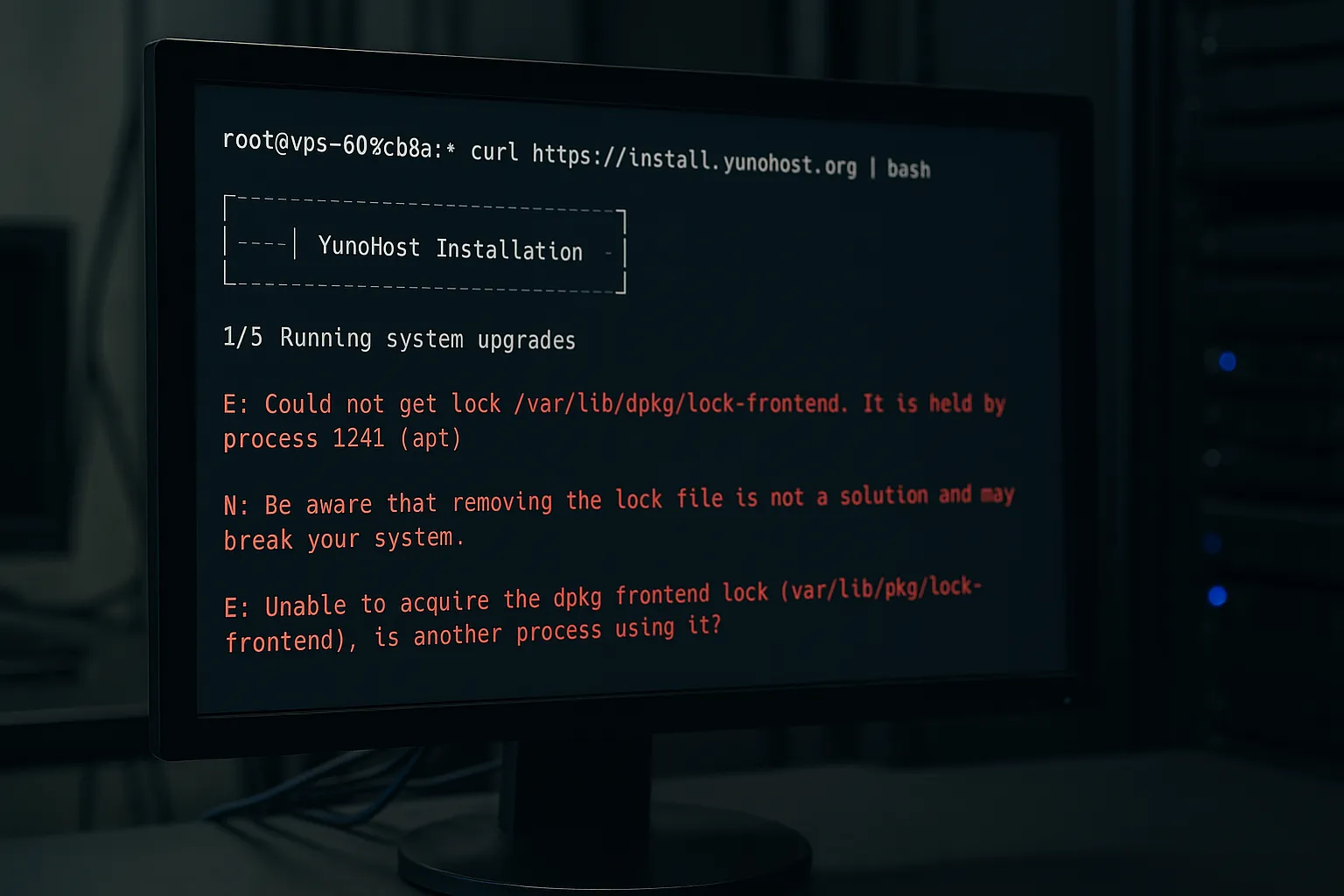
When trying to install YunoHost on a Debian-based server, you may encounter the "Could not get lock /var/lib/dpkg/lock-frontend" error. This error usually occurs due to another apt process running on the system and interrupts the installation.
In this article, we will explain step by step why this error occurs, how to detect it and how to solve it safely. ✅
🧠 Meaning of the Error#
The error message usually appears as follows:
E: Could not get lock /var/lib/dpkg/lock-frontend. It is held by process 1241 (apt)
This means that another apt process running on the system has locked the dpkg system and therefore your process is blocked.
🔍 Step by Step Solution#
1. Check active apt processes:#
ps aux | grep apt
This command lists running or frozen apt processes. For example:
root 1241 0.3 apt upgrade -y
2. Terminate these processes if necessary ⚠️#
sudo kill -9 1241 1240 1239
3. Clean lock files 🧹#
sudo rm /var/lib/dpkg/lock-frontend
sudo rm /var/lib/apt/lists/lock
4. Fix dpkg configuration 🛠️#
sudo dpkg --configure -a
5. Update package lists and complete missing items 📦#
sudo apt update
sudo apt --fix-broken install
6. Install the required package (example: libtext-iconv-perl)#
sudo apt install libtext-iconv-perl
7. Restart YunoHost installation 🌐#
curl https://install.yunohost.org | bash
✅ Conclusion#
In this guide, you learned how to solve the dpkg lock error that frequently occurs during the YunoHost installation process. This method works not only for YunoHost, but also for all apt-based installations in general.
🔒 Locked systems can be demoralizing, but you can quickly solve them with these steps!
📚 Extra Tips#
- If
aptprocesses frequently freeze, check your server's disk space. - You can monitor general resource usage on the system with the
htopcommand. - For long installation processes, you can use
tmuxorscreento prevent SSH sessions from disconnecting.
Leave your comments below 💬, see you in another guide! 👋
Comments