🎯 Introduction#
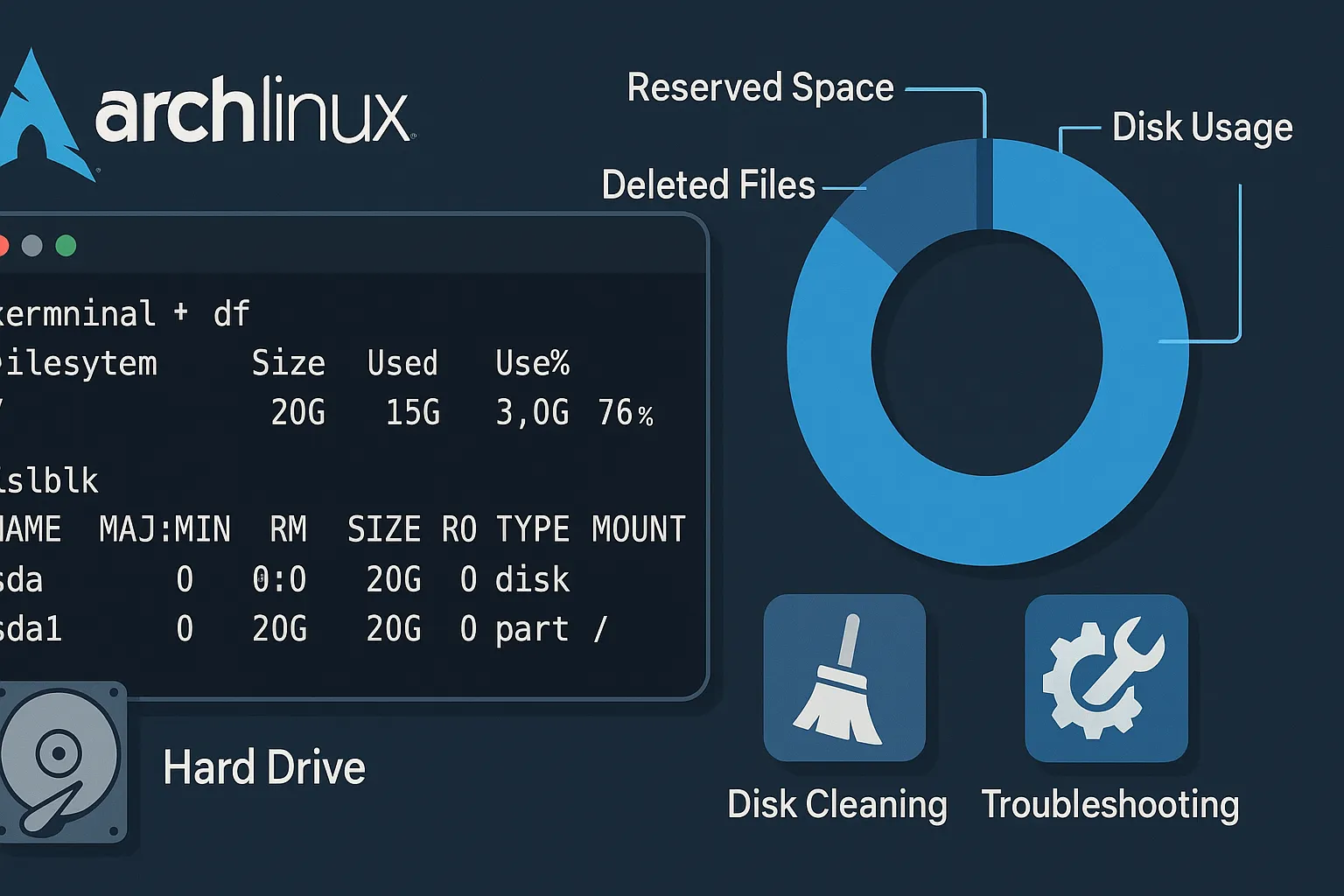
If you are an Arch Linux user, you might have wondered why only a certain amount of free space is visible on your system, even though you know you have hundreds of gigabytes of free space. For example: You know you have 300 GB of free space on your disk, but df -h only shows you 173 GB. So why?
In this guide, we will analyze and solve this confusing problem step by step. Our goal is to understand where the missing disk space in your Arch Linux system has "disappeared" and how to effectively reclaim it. 🤓
👤 Target Audience#
This article is written for intermediate and advanced Linux users. It is especially suitable for those who want to manage disk space on their own in systems like Arch Linux, Manjaro, and Artix. It is optimized for users familiar with terminal usage, disk partitions, and ext4 file system.
🧠 Quick Look: Why Does the Problem Occur?#
The most common reasons:
- Blocks reserved for root by the
ext4file system - Deleted files still held by running processes
- Huge caches of applications like Steam
- Incorrect or incomplete partitioning
- User's misinterpretation of free space calculations
- Non-persistent file usage due to the system not being rebooted
This article provides a solution map covering all these scenarios.
📋 Step-by-Step Problem Detection and Solution#
✅ Step 1: Understand the Disk Structure Correctly#
Command:
lsblk -f
🔎 Explanation: This command shows which file systems disk partitions use and where they are mounted.
✅ Step 2: View Disk Usage Rates#
Command:
df -h
🔎 Explanation: Lists the total, used, and free space of file systems.
Example output:
Filesystem      Size  Used Avail Use% Mounted on
/dev/sda1       916G  697G  173G  81% /mnt/steam_depo
✅ Step 3: Check Root Reserved Space#
In the ext4 file system in Linux, approximately 5% of the disk is reserved for the root user. This space is not visible to users.
Command:
sudo tune2fs -l /dev/sda1 | grep 'Reserved block count'
Alternative:
sudo dumpe2fs /dev/sda1 | grep Reserved
🔧 Solution: Resetting the reserved space amount (optional):
sudo tune2fs -m 0 /dev/sda1
⚠️ Warning: Setting it to 0% is not recommended for server systems; only for desktop users.
✅ Step 4: Find Deleted but Used Files#
Deleted files can still occupy disk space if they are held by processes.
Command:
sudo lsof | grep deleted
🔧 Solution:
Terminate the process holding these files or stop it with the kill command.
✅ Step 5: Identify Large Folders and Files#
To find out which folders occupy the most space:
Command:
sudo du -h --max-depth=1 /mnt/steam_depo | sort -hr | head -n 20
Example output:
606G    /mnt/steam_depo/BaBaGames
72G     /mnt/steam_depo/SteamLibrary
20G     /mnt/steam_depo/Age of Empires II Definitive Edition
✅ Step 6: Clean Unnecessary Files 🧹#
Deletable space occupiers:
- 🎮 Old game files
- 🧱 Steam download cache
- 🗑️
.Trash-*folders - 🐳 Unused Docker images:
docker system prune -a
✅ Step 7: Reboot the System 🔁#
In some cases, even if you do everything correctly, free space may not appear as it should. In such cases, rebooting the system truly frees up files held in process.
🔎 Why does it work?
- Deleted files remaining in memory are cleared
- Disk cache is written to disk
- Unclosed applications like Steam release the occupied space
🔧 Solution:
sudo reboot
✅ Step 8: Back up to External Environments ☁️#
Places where you can move large files to create free space:
- External HDD/SSD
- Cloud solutions like Google Drive, Dropbox, Mega
- NAS servers
📦 Conclusion: The Key to Freeing Up Space is Correct Analysis#
To understand why your disk shows less free space, make sure to check the following points:
✅ Disk visibility with df and lsblk
✅ Root reserved space
✅ Deleted but open files
✅ Large folders and games
✅ Trash bins and cache files
✅ System reboot step
With these steps, you can master disk space management on your Arch Linux system. 🧠
Comments