Series: Linux-disk
Part 1/3What is the Problem? ⚠️#
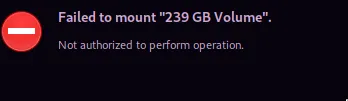
Since Linux's default file system is ext (ext1, ext2, ext3, ext4), when setting up a new system, you may encounter the error "failed to mount diskadı -> not authorized to perform operation" when trying to mount NTFS formatted disks. If you're using a more modern file manager, it might also ask for a password when you try to connect. Linux recognizes other file systems but requires authorization to perform operations.
Solution 1️⃣: Authorization Settings#
Open the terminal and install the following packages:
sudo pacman -S gvfs ntfs-3g dosfstools
Then, follow these steps:
su
cd /usr/share/polkit-1/rules.d
touch 10-drives.rules
vim 10-drives.rules  # You can also use Nano or another editor
Add the following code to the opened file:
polkit.addRule(function (action, subject) {
  if (action.id.indexOf("org.freedesktop.udisks2.") == 0) {
    return polkit.Result.YES;
  }
});
If these settings don't take effect on your system, you can try running the update again with the following command:
sudo pacman -S gvfs ntfs-3g dosfstools
Finally, add the user to the disk group:
sudo gpasswd -a $USER disk
After restarting your computer, the problem will be solved. 🚀
Alternative Solution 2️⃣: Manual Mounting#
To see the list of connected disks and their UUID information, you can run the following command:
sudo blkid
To mount an NTFS disk to a specific folder:
sudo mkdir /mnt/ntfsdisk
sudo mount -t ntfs-3g /dev/sdXX /mnt/ntfsdisk
For the sdXX disk name, write the disk name you found with the blkid command (for example: sda1, sdb2, etc.).
If you want to unmount the disk:
sudo umount /mnt/ntfsdisk
Automatic Mounting of Disk 🔄#
If you want the disk to be automatically mounted at startup, you need to edit your fstab file:
sudo vim /etc/fstab # You can also use Nano or another editor
Add the following line at the bottom of the file:
/dev/sdXX /mnt/ntfsdisk ntfs-3g uid=username,gid=users,umask=0022 0 0
When you restart your computer, the disk will be automatically mounted. 🚀
More Information 📚#
For more detailed information, you can check the Arch Linux NTFS-3G Wiki page. 💡
Comments