Fixing Steam Audio Errors on Arch Linux#
🎮 Are you getting a "Could not initialize the sound engine" error in Steam games while using Arch Linux under Wayland? Don't worry — this guide will explain to you all the necessary steps to solve audio issues, step by step!
These types of errors usually stem from configuration issues related to PipeWire, PulseAudio, or the game's own audio engines. Now let's examine together how to solve these problems. 👇
English errors:
- Could not initialize the sound engine. Please make sure you have the latest audio drivers installed.
"Ocam no problems with different games in Steam. When I say Tannenberg or Verdun, the screen opens but 'sound engine could not be started'. Otherwise I have sound in the system, there's no sound at all in these two games \:D" — Galip Dede
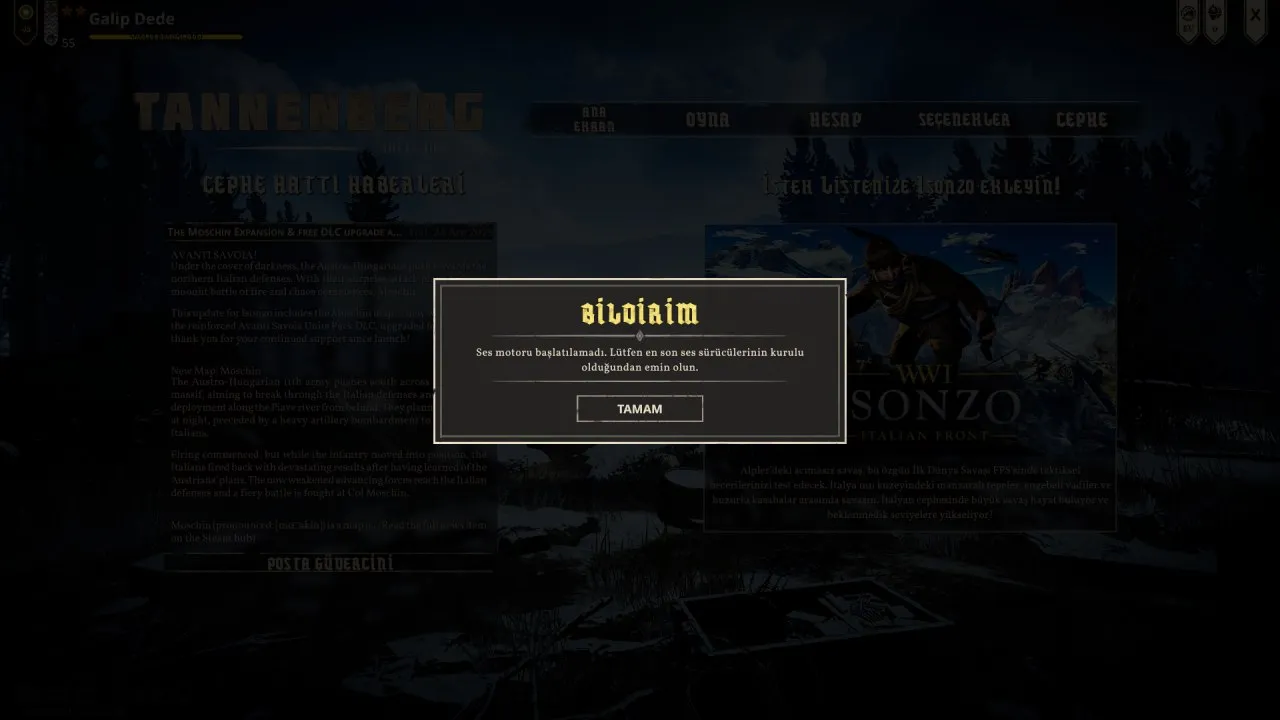
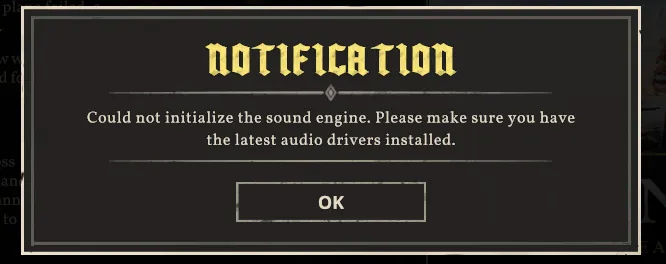
Important Note We solved the problem in this guide by introducing the extensions, i.e. by applying the steps in number 3. Therefore, we removed the other startup options. However, I continue to leave extra information for users who can't solve the problem with this method. If you experience confusion, first apply the steps in the guide. If it doesn't work, you can try the other alternative steps.
1. Check PipeWire Configuration#
1.1 Check the Status of PipeWire Services#
Check if these packages are installed:
sudo pacman -S \
  alsa-card-profiles alsa-plugins alsa-ucm-conf \
  alsa-lib alsa-topology-conf alsa-utils \
  pipewire pipewire-audio pipewire-alsa pipewire-jack \
  pipewire-pulse pipewire-libcamera pwvucontrol \
  wireplumber lib32-pipewire lib32-libpulse
First, make sure PipeWire services are active and running properly on your system:
systemctl --user status pipewire
systemctl --user status pipewire-pulse
If the services are not running, use the following commands to enable them:
systemctl --user enable pipewire pipewire-pulse wireplumber
systemctl --user restart pipewire pipewire-pulse wireplumber
1.2 Enable PipeWire-Pulse Service#
The pipewire-pulse service is required for Steam to work with audio systems. Check with the following command:
systemctl --user status pipewire-pulse
If the service is not running, apply the following command:
systemctl --user enable --now pipewire-pulse
Also, installing the following package may be critical:
sudo pacman -S lib32-libpulse
2. Update Steam Launch Options#
Another source of audio issues in Wayland environment could be SDL and graphics backend configurations.
System Information and GPU Drivers#
Galip's system:
- Desktop environment: KDE Wayland
- Graphics card: AMD Radeon RX 550
The following packages should be installed on AMD systems:
sudo pacman -S mesa lib32-mesa vulkan-radeon lib32-vulkan-radeon vulkan-tools
vulkaninfo output was as follows:
GPU id = 0 (AMD Radeon RX 550 / 550 Series (RADV POLARIS12))
Note: These codes are for wayland startup options. You don't need to do it for X11. After these commands our problem was not solved, but I'm leaving it as information. Since it didn't work, we delete the startup options and continue.
Steam Outputs and Errors#
Some notable lines in Steam terminal outputs were:
ERROR: ld.so: object '.../gameoverlayrenderer.so' from LD_PRELOAD cannot be preloaded (wrong ELF class): ignored.
(process:4678): GLib-GObject-CRITICAL **: g_object_unref: assertion 'G_IS_OBJECT (object)' failed
Although these errors generally indicate graphics/system incompatibilities rather than audio, a bypass can be attempted via LD_PRELOAD.
Solution 1: Game Launch Options#
First, enter the following command in launch options in Steam:
env LD_PRELOAD="" %command%
If that doesn't work, try these variants:
env GDK_BACKEND=x11 SDL_VIDEODRIVER=x11 LD_PRELOAD="" %command%
or
env PULSE_LATENCY_MSEC=60 SDL_AUDIODRIVER=pulse GDK_BACKEND=x11 SDL_VIDEODRIVER=x11 LD_PRELOAD="" %command%
Solution 2: Remove Overlay and XDG Portal#
Steam Overlay can cause problems on some systems. Turn it off in settings.
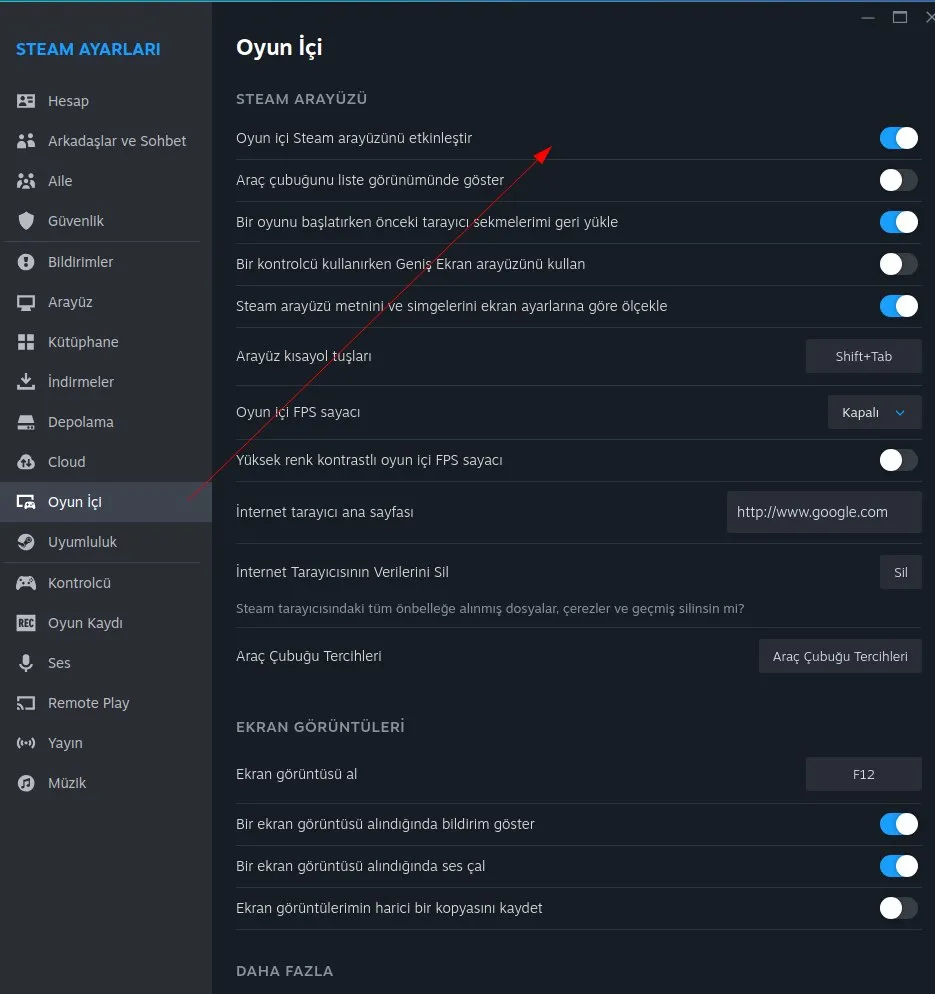
Additionally, removing the xdg-desktop-portals package with the following command may be a solution:
sudo pacman -R xdg-desktop-portals
Solution 3: Check PipeWire Service Status#
systemctl --user status pipewire
systemctl --user status pipewire-pulse
Both should be in active (running) status.
Example output from Galip:
● pipewire.service - PipeWire Multimedia Service
     Active: active (running) since ...

● pipewire-pulse.service - PipeWire PulseAudio
     Active: active (running) since ...
2.1 Edit Launch Options in Steam#
- Right-click on game in Steam → Properties
- Write the following in the Launch Options field:
env SDL_AUDIODRIVER=pulse GDK_BACKEND=x11 SDL_VIDEODRIVER=x11 LD_PRELOAD="" %command%
This setting makes SDL use PulseAudio and run more stably via X11.
Note: We couldn't solve the problem with these commands, we delete the launch options and continue.
3. Load Fmodstudio Libraries with LD_PRELOAD#
Some games (e.g. Isonzo, Verdun, Tannenberg) may have errors due to special sound engines.
3.1 Find Game Folder#
Right-click your game in Steam game library, select Browse Local Files from the Manage menu. For me it looks like this:
~/.local/share/Steam/steamapps/common/Isonzo/Isonzo/Isonzo_Data/Plugins
3.2 Add LD_PRELOAD to Launch Options#
Launch options for each game should be set according to the following examples:
File content appears as follows:
Permissions Size User Date Modified Name
.rwxr-xr-x 13Mi friday13 5 May 04:50 libEOSSDK-Linux-Shipping.so
.rwxr-xr-x 2,9Mi friday13 5 May 04:50 libfmodstudio.so
.rwxr-xr-x 3,9Mi friday13 5 May 04:50 libfmodstudioL.so
.rwxr-xr-x 917Ki friday13 5 May 04:50 libresonanceaudio.so
.rwxr-xr-x 389Ki friday13 5 May 04:50 libsteam_api.so
Isonzo#
LD_PRELOAD="$(pwd)/Isonzo/Isonzo_Data/Plugins/libfmodstudio.so $(pwd)/Isonzo/Isonzo_Data/Plugins/libfmodstudioL.so" %command%
Verdun#
LD_PRELOAD="$(pwd)/Verdun/Verdun_Data/Plugins/libfmodstudio.so $(pwd)/Verdun/Verdun_Data/Plugins/libfmodstudioL.so" %command%
Tannenberg#
LD_PRELOAD="$(pwd)/Tannenberg/Tannenberg_Data/Plugins/libfmodstudio.so $(pwd)/Tannenberg/Tannenberg_Data/Plugins/libfmodstudioL.so" %command%
4. Advanced Solution with GLIBC Tuning#
If your glibc version is not 2.41 or higher, you may get audio errors in some games. In this case, glibc tunables setting can be helpful.
GLIBC_TUNABLES=glibc.rtld.execstack=2 %command%
This setting may make games work more compatibly with low-level audio managers on your system.
5. Extra Help and Community Support#
🧠 If you still experience problems despite all the steps above:
Users who experienced similar problems may share solution paths with you.
Conclusion: Steam Audio Problems Are History! ✅#
In this guide, we explained step by step how to solve audio problems in Steam games on Arch Linux. We covered many methods from PipeWire services to launch options, from LD_PRELOAD library loading to glibc settings.
If this guide was helpful to you, please don't forget to leave a comment or share. 🎉 Stay tuned for more Linux guides!
Comments