Guide: Monitor Your Game Performance with MangoHud 🎮#
Do you want to monitor game performance in real time while playing games on Linux? What about seeing information like FPS, CPU temperature, GPU usage in one corner of the screen? This is exactly where MangoHud comes into play. In this guide, I'll provide step-by-step information about how to install, configure and use MangoHud with games on Arch Linux.
What is MangoHud?#
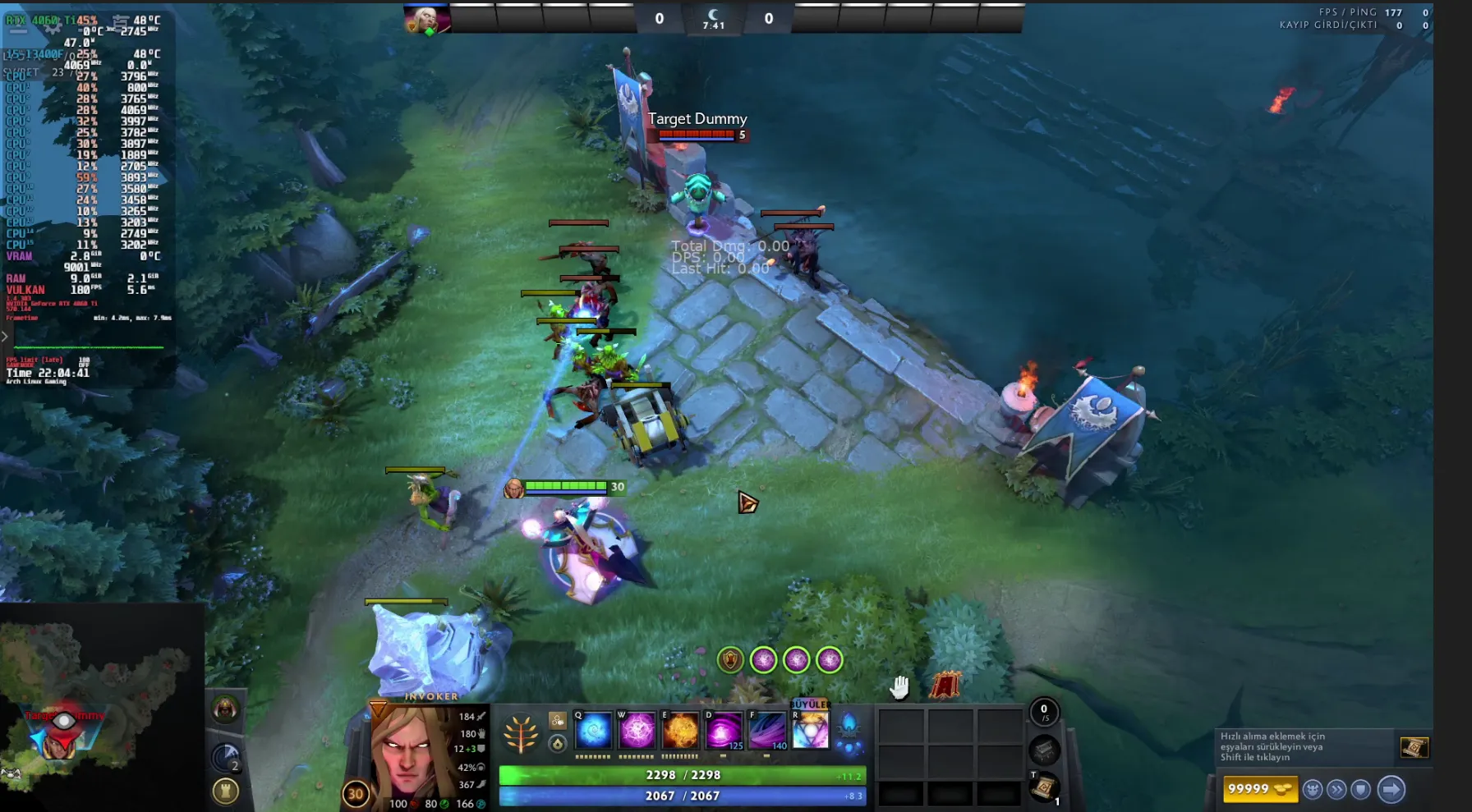
MangoHud is an open-source tool that displays system performance as an overlay in Vulkan and OpenGL-based games. It comes with many metrics including FPS, GPU/CPU temperature, memory usage. Additionally, it can also be used to record performance data during game benchmarks.
Installing MangoHud (Arch Linux)#
If you're using Arch Linux, installing MangoHud is quite easy. You can install MangoHud with the following command:
sudo pacman -S mangohud
If you're playing 32-bit games, you may also need to install:
sudo pacman -S lib32-mangohud
Configuring MangoHud 📁#
Several file paths can be used for MangoHud configuration. MangoHud scans these files in order:
$XDG_CONFIG_HOME/MangoHud/MangoHud.conf$XDG_CONFIG_HOME/MangoHud/APPLICATION-NAME.conf(case sensitive)$XDG_CONFIG_HOME/MangoHud/wine-APPLICATION-NAME.conf(for Wine applications, without.exeextension)./MangoHud.conf$MANGOHUD_CONFIGFILE(if specified with environment variable)
📝 Tip: An example configuration file can be found on MangoHud's GitHub page.
Example Content for MangoHud.conf#
fps_limit=144
cpu_temp=1
gpu_temp=1
ram=1
frame_timing=1
 #
MangoHud GUI Tool: GOverlay 🖥️#
For users who don't want to deal with terminal, there's also a configuration tool with graphical interface called GOverlay. It can be easily installed via AUR:
yay -S goverlay
With GOverlay, you can edit all MangoHud settings through GUI and get previews.
Using MangoHud 🚀#
General Usage#
To start an application with MangoHud, you can use the following command in terminal:
mangohud application_name
Example:
mangohud glxgears
Keyboard Shortcuts#
Right Shift + F12– Toggle overlay on/offRight Shift + F11– Change overlay positionRight Shift + F10– Change overlay profileLeft Shift + F2– Toggle logging on/offLeft Shift + F4– Reload configuration
Using MangoHud with Steam Games#
To include MangoHud in Steam games:
- Right click the game in your Steam library → Properties…
- In the opened window, enter the following in Launch Options section:
mangohud %command%
Alternatively, you can start Steam with MangoHud for all games:
mangohud steam-runtime
Using with GameMode#
To increase performance, you can run MangoHud together with GameMode as follows:
mangohud gamemoderun game_name
Extra Tips 🧠#
- MangoHud only works in Vulkan/OpenGL games. DirectX games are also supported via translation layers like DXVK or VKD3D.
- You can use the following environment variable for MangoHud to run automatically:
export MANGOHUD=1
--dlsymparameter may be required in some games:
mangohud --dlsym game_name
Installation Note for Debian/Ubuntu#
This guide is for Arch Linux. In Debian/Ubuntu systems, apt install mangohud command can be used. However, configuration and usage steps are largely the same.
Conclusion: The Best Way to Monitor Performance in Games#
MangoHud is an indispensable performance monitoring tool for those playing games on Linux. With both its easy installation and flexible configuration, it provides great convenience for both gamers and developers. In this guide, we detailed how to install and use MangoHud on Arch Linux.
🎯 Have you tried MangoHud? Which settings do you prefer in your configuration file? Share in the comments!
Comments