🎬 Introduction: Using DaVinci Resolve on Linux#
DaVinci Resolve is one of the world's most powerful software for both professional and hobbyist video editors. 🎥 While it works seamlessly on Windows and macOS, Linux users sometimes encounter unexpected errors. Especially on Arch Linux and its derivatives (such as EndeavourOS, Manjaro) when installed via AUR, it's a common problem that Resolve doesn't open.
In this article, we'll address the issue of DaVinci Resolve 20.1 not opening on Linux. The error appears as follows:
/opt/resolve/bin/resolve: symbol lookup error:
/usr/lib/libpango-1.0.so.0: undefined symbol: g_once_init_leave_pointer
This error, which seems quite complex at first glance, actually stems from a very simple reason: the old libraries bundled within Resolve conflict with the updated versions on your system.
👉 The solution is quite practical: prevent Resolve from using these old libraries and make it use the updated system versions instead.
🛠️ The Cause of the Error: Old Libraries#
DaVinci Resolve installs many dependency (library) files to the /opt/resolve/libs directory along with the installation. Among these are fundamental GNOME libraries such as libglib, libgio, and libgmodule. However, since the Arch Linux ecosystem is "rolling release," these libraries are constantly updated.
Therefore, the old versions within Resolve conflict with the newer ones on the system, causing errors like "undefined symbol".
Resolve's own libraries are actually added for compatibility purposes. However, on Arch-based systems, working with updated versions is always more stable.
🔧 Step-by-Step Solution Method#
You can easily solve the error by following the steps below. 🚀
1. Enter the Resolve Library Directory#
First, we go to the directory where Resolve is installed:
cd /opt/resolve/libs
2. Create a Backup Directory#
Instead of directly deleting the old libraries, we create a new folder called disabled-libraries for security:
sudo mkdir disabled-libraries
3. Move Old Libraries#
Now we move the problematic libraries inside Resolve to this folder:
sudo mv libglib* disabled-libraries
sudo mv libgio* disabled-libraries
sudo mv libgmodule* disabled-libraries
4. Restart Resolve#
Now Resolve won't find its own old libraries and will use the updated system versions. Try again:
/opt/resolve/bin/resolve
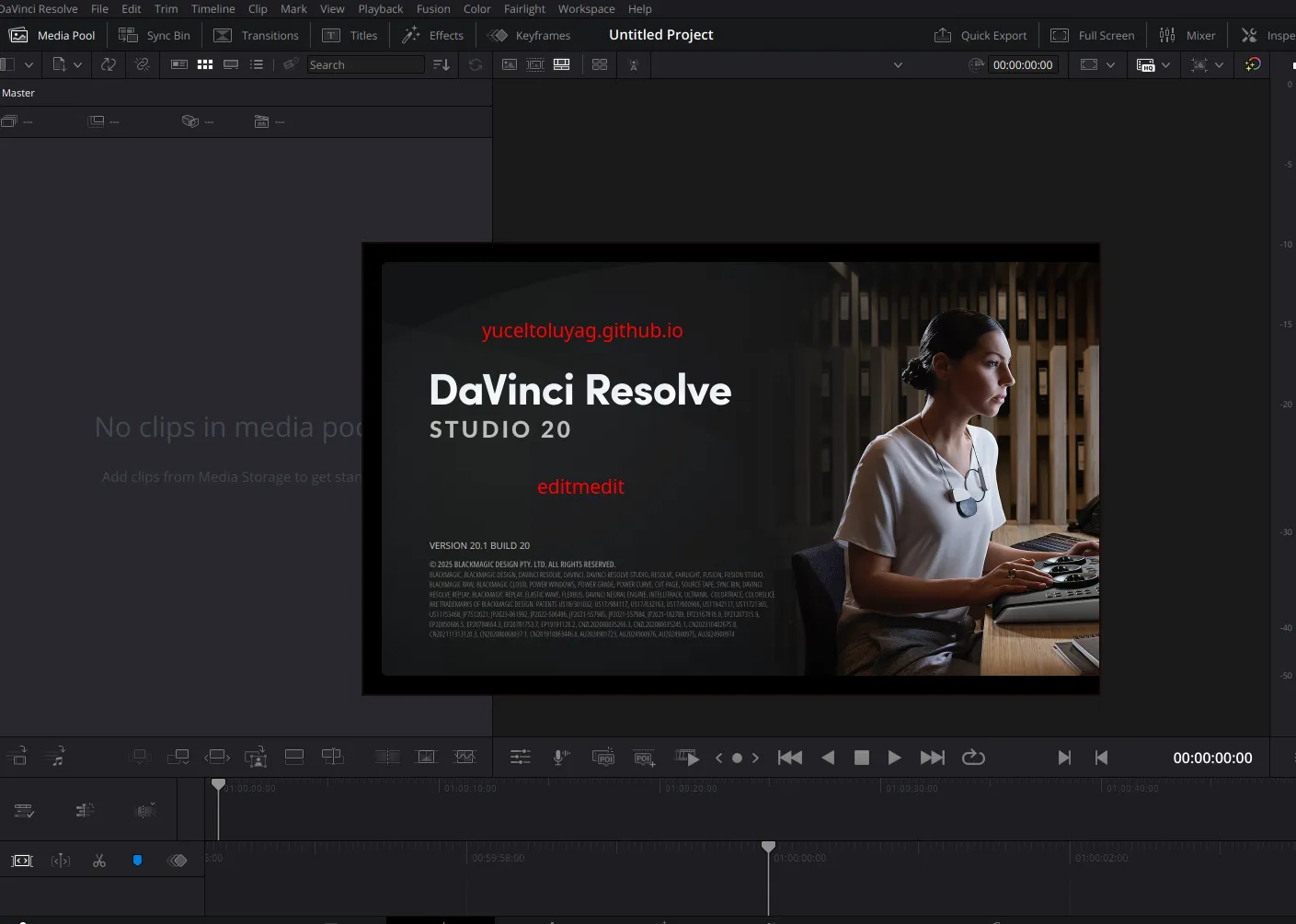
🎉 If everything was done correctly, Resolve will open without problems!
⚡ Alternative Method: DaVinci Resolve Checker#
There's a Python tool prepared by the community to detect problems during installation: davinci-resolve-checker.py.
You can run this to identify missing dependencies and potential errors:
python3 davinci-resolve-checker.py
Although the checker tool doesn't always give 100% accurate results, it helps you quickly spot missing dependencies.
⚠️ Important Precautions#
- ✅ When moving files, definitely use
mv, don't delete files withrm. - ✅ If Resolve still doesn't open, carefully examine the terminal output to see which libraries are conflicting.
- ❌ After the solution, you may need to check Resolve's library directory again during system updates.
Don't modify system libraries manually. Only make changes in Resolve's own folder. If you accidentally delete files under /usr/lib, your system may stop working.
📚 Additional Resources#
🏁 Conclusion: Now Resolve Works!#
Using DaVinci Resolve on Linux may sometimes require extra steps, but with the right methods, all problems can be overcome. This solution here isn't just for the 20.1 version, but also a practical method that can be applied if you get the same error in future versions.
To summarize:
- The error stems from Resolve's old libraries.
- You can find a solution by moving
libglib,libgio,libgmodulefiles. - Now Resolve will use the updated system libraries and open without problems. 🎉
- For extra download issues, you can also check our DaVinci Resolve Extras Download Issue Solution article.
If this guide helped you, don't forget to check our Linux category for more content about DaVinci Resolve installations on Linux. 🐧
Comments