To me, SimCity 3000 is the best city-building game ever, my friend. It's a souped-up version of the SimCity 2000 engine, made to be a beast. Those pixel-perfect isometric graphics, that perfect gameplay balance that doesn't overwhelm but also doesn't make you feel like a kid, and of course, that amazing jazz/new-age soundtrack...
Recently, while rummaging through my archives, I stumbled upon the Scholastic Edition CD I got from a book fair back in elementary school (you know, those fairs held in the gymnasium of our old, demolished elementary school). The CD was dusty but still in one piece. "Screw it," I thought, "why would I shell out money again on GOG or Steam for the same game?" I immediately grabbed my test system, a Windows 10 LTSC rig with a Ryzen 5 3600 and an RX 7600, and popped in the CD. The installation went smoothly, but when I launched the game, I was hit with a reality check from 1999:
- Forget widescreen support; we're counting pixels at 800x600 resolution.
- Scrolling around the map causes the game to stutter like crazy, or the mouse speed goes into lightspeed and flies off the screen.
- Those beautiful tunes don't play once the city loads.
- The music doesn't play without the CD, and the tracks that do play are incomplete.
- When scrolling the map, some frames stay as gray boxes for a few seconds before loading.
For the sake of the old days, I rolled up my sleeves. If you, like me, want to play this legend fluently on your modern 4K monitor, here are the steps I'm laying out in the order I tested them.
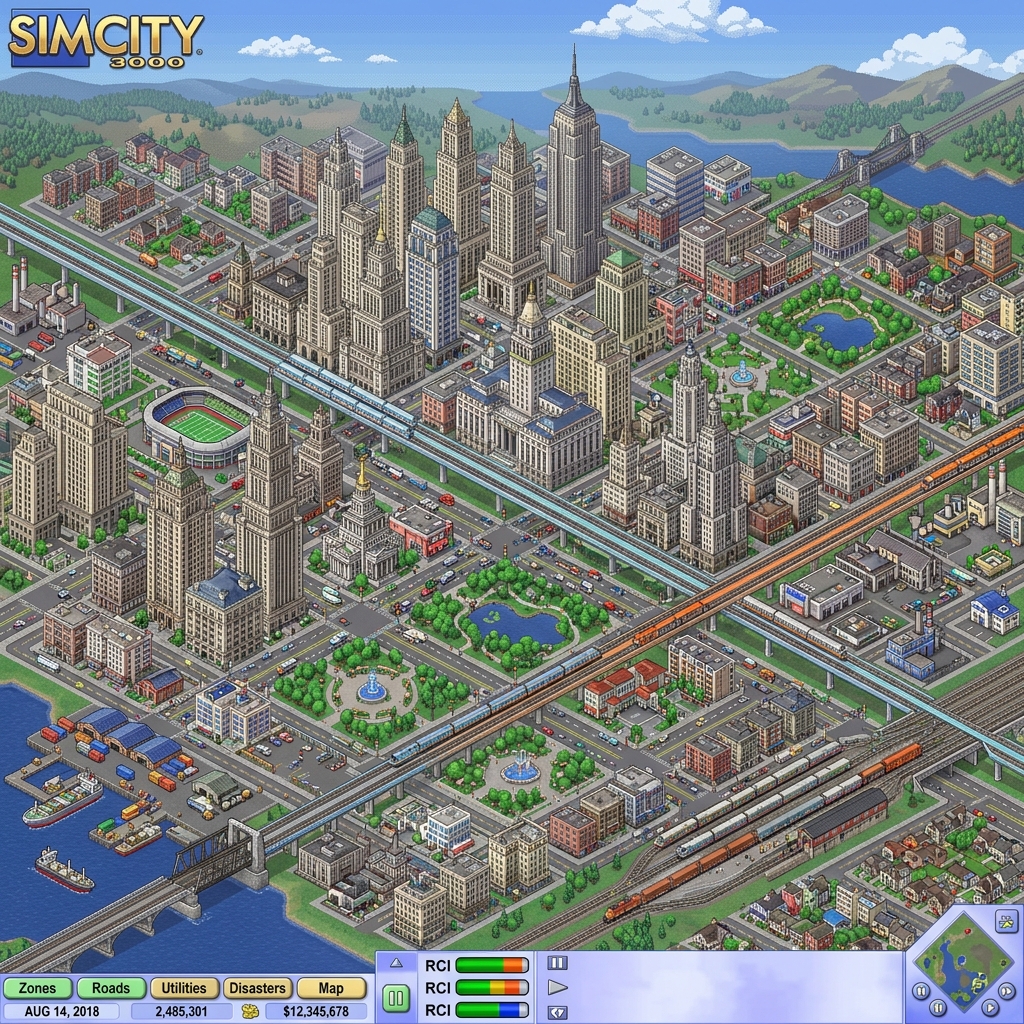
Look at that beauty, my friend. SimCity 3000 shines in 4K resolution! I built skyscrapers directly without even laying down a hospital or fire station; we like to challenge fate.
Escaping the CD Hassle and Blocky Screen Shackles (GOG Patch)#
Running the game with the original CD is a thing of the past, my friend. To avoid the insert/eject routine and give the game widescreen capabilities, our first step is to download the patch file prepared by the GOG team.
- Files at our fingertips: You can download the patch from the GOG Official Support Page or directly from this Alternative Catbox Mirror. (MD5 for file verification:
638eb5b3e7de9ada9b61a1ea40d276a4)
Overwrite the original executable file in your game's installation folder with the one from the downloaded archive. This process eliminates the CD check and opens the door for widescreen resolutions. But a word of caution: increasing the resolution will mess with mouse sensitivity, which we'll fix in the next step.
Taming the Wild Mouse (Mouse Sensitivity Adjustment)#
When you switch to a higher resolution, the in-game mouse acceleration increases so much that you'll find yourself at the edge of the map when you just wanted to scroll a centimeter. The solution lies in the game's configuration file.
Navigate to your game's installation directory and find the SC3U.ini file. Open it with your favorite text editor and update the value under the [Navigation] heading as follows:
[Navigation]
ScrollMarginFactor = 0.005787
If you downloaded the game from Steam, this file might not be in the folder1. No need to panic; create a new plain text file yourself, name it SC3U.ini, and paste the lines above into it before saving.
Persuading the Graphics Card on a 4K Monitor (D3D Wrapper Solution)#
Since my monitor runs at a native 3840x2160 resolution, the graphics got messed up when I tried to run the game at this resolution. Modern graphics cards (DirectX 11 and above) can't properly interpret these old Direct3D calls. To fix the visual distortion and make the game compatible with your graphics card, we absolutely need to insert a Direct3D wrapper.
- Package to download: PC Gaming Wiki or Alternative Catbox Mirror (MD5:
e97d0989cab120608800f2e3395581a7)
Download this package and extract all the files inside to your game's Apps folder.
Warning! Don't Let the Windows Taskbar Ruin Your Gaming Experience
This wrapper, by default, attempts to launch the game in borderless windowed mode. Consequently, the Windows taskbar pushes the game down, messing up the alignment. To prevent this, open the dxwrapper.ini file in the Apps folder and make the following adjustments:
    [d3d9]
    EnableWindowMode = 0
    ...
    [FullScreen]
    FullScreen = 1
This way, the game will start in true fullscreen mode, and you won't have to deal with the taskbar.
Eliminating Gray Gaps on the Map (4GB Patch)#
It's annoying when some frames on the map first appear as gray/faded boxes and then load a few seconds later, my friend. Since the game is written with a 32-bit architecture, it can't efficiently utilize the massive amounts of RAM in modern systems. We'll apply the 4GB patch to give the game some breathing room.
- Get the patch: NTCore 4GB Patch
Download and run the tool, then select the SC3K.exe (or SC3U.exe)2 file that we modified and patch it. I haven't scientifically tested this, but I can say it slices through the problem of delayed graphics when quickly scrolling the map like a knife through butter.
That Endless Waiting Issue at Startup#
The game freezing for minutes or running extremely slowly when you first launch it is entirely related to EA/Maxis's update servers back then. The game tries to connect to an update server that's now a graveyard, and it waits as it gets no response. To disable this nonsense, we'll use a fake configuration file.
- Download the setting: Simtropolis or Alternative Catbox Mirror (MD5:
e01ec9e7568560f493ff4cbbebb0e3d4)
Rename the file extracted from the downloaded zip to UpdateSettings.ini. Then, navigate to the Apps/Updater directory in your game folder and overwrite the existing file. When you launch the game, you'll see that minutes-long freeze is a thing of the past.
Listening to Nostalgic Jazz Melodies Without a CD#
The game just isn't the same without SimCity 3000's incredible music. In the Unlimited version, some music tracks aren't listed in the .ini file, so even if the files are in the folder, they won't play in the game.
- Music List Patch: PC Gaming Wiki or Alternative Catbox Mirror (MD5:
5877e363565850306131e564e364481c)
Extract this package directly into the game's main directory.
Tip ⚡ Moving Music Files from CD to HDD
If you installed the game from a physical CD like I did, the installation wizard won't copy the music to your computer. Go into the APPS/RES/SOUND/MUSIC folder on the CD and copy all the .xa files from there to the same folder where your game is installed on your computer. This way, you can enjoy the music without your CD drive making noise.
What About Those Using Windows 11?#
I tested these settings on my Windows 10 LTSC 2021 test computer and got fantastic results. My loyal followers know I don't go near Windows 11 on my home systems. However, based on the feedback I've received, those who have applied these steps on Windows 11 have also started managing their cities without issues. Especially those using ultrawide monitors (like 5120x2160) have managed to run the game in full compatibility even on massive screens with the wrapper's help.
Now, you owe me a thank you when you're watching the smoking factories of the city you built with your own hands, meticulously calculating its budget.
Stay well, everyone!
🔗 Other Notes from the Lab#
Here are some of my other articles that might come in handy when tinkering with systems and diving deep into games:
- A Breath of Nostalgia on Linux: Space Cadet Pinball and Those Secret Mornings
- Playing Forza Horizon 6 with the Old RX 480 (FH201 Error Guaranteed Fix)
- Lutris's Stubbornness with impact.ttf and the Fix for That Annoying Return Code 256 Error
- Installing Turkish Language Patches for Linux Games
-
The
SC3U.inifile might not be present by default in Steam installations. In such cases, it's sufficient to create a new text document in the game's main folder (in the Apps directory), name itSC3U.ini, and enter these lines into it. ↩ -
This 4GB patch, developed by NTCore, allows 32-bit applications to address 4GB of virtual memory instead of 2GB on 64-bit operating systems. This also helps prevent crashes caused by memory overflows. ↩