🌙 What is Redshift?#
Redshift is a great tool especially for people who use computers at night. The program automatically changes the color temperature and gamma settings of your screen according to sunrise and sunset. This reduces eye strain and provides a more comfortable experience. 😌
🚀 Alternative Programs#
Before using Redshift, I tried a few alternative programs:
- Windows Night Light (Night Mode): Although it's a built-in feature of Windows, it's insufficient in terms of flexibility.
- Flux: The early versions were successful, but some shortcomings emerged over time.
- Redshift: Since I've been using it without problems on Linux for a long time, I decided to try it on Windows too. It's possible to run on Windows thanks to open source and cross-platform support. 💡
🔧 How to Install Redshift?#
- Download the latest version of Redshift.
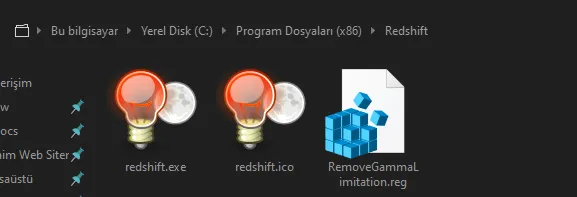
- Create a folder named Redshift inside C:\Program Files (x86).
- Extract the downloaded files into this folder.
- You need registry (reg) files to remove gamma limits. You can download them from here.
📂 The folder structure should be as follows:
C:\Program Files (x86)\Redshift
 ├── redshift.exe
 ├── redshift.conf
 ├── other files...
⚙️ Redshift Settings#
Before starting Redshift, you need to make some configurations:
- Press Windows + R keys to open the run window.
- Go to **%USERPROFILE%\AppData\Local** directory.
- Create a new file named redshift.conf.
- Go to LatLong.net site and get the latitude and longitude information of your location.
- Edit your redshift.conf file as follows:
[redshift]
; Set day and night screen temperatures
temp-day=6500
temp-night=5500
transition=1
brightness-day=1
brightness-night=0.7
gamma-day=0.8:0.7:0.8
gamma-night=0.8
location-provider=manual
adjustment-method=wingdi

[manual]
lat=xx
lon=yy
📌 Note: Don't forget to add your own location information to lat=xx and lon=yy parts!
▶️ Starting Redshift#
- Run the Redshift.exe file.
- Observe that the screen color temperature changes slowly.
- If you get any error, check that your redshift.conf file is configured correctly.
Redshift will make your screen eye-friendly and make your night work more comfortable. 🌟 It's especially useful for programmers, writers and everyone who spends long periods in front of the computer. 🖥️💙
You can share your questions or experiences in the comments! 🎤
Comments