This article is older than 2 years. Some information might be outdated.
Series: phpstorm
Part 1/3Using Cmder in PHPStorm 🚀#
To use the terminal in PHPStorm, we need to specify the path in environment variables. You can follow these steps to add environment variables in Windows environment:
Setting Environment Variables ⚙️#
- Right-click on My Computer and go to Properties.
- Click on Advanced System Settings.
- Just below the Startup and Recovery section, you will see Environment Variables.
- Click on Environment Variables and press the New button.
📌 Variable Name: CMDER_ROOT
📌 Path: C:\cmder

I had downloaded the full version of Cmder and extracted it to the C: directory. Show the directory where you installed it.

Terminal Setting for PHPStorm 🛠️#
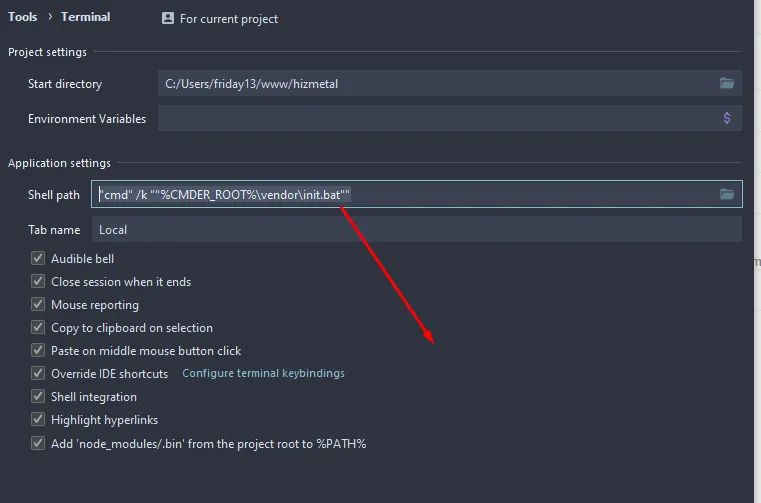
- Enter the Settings tab in PHPStorm.
- Click on the Terminal tab under the Tools menu.
- Write the following command in the Shell Path section:
"cmd" /k ""%CMDER_ROOT%\vendor\init.bat""
Restarting PHPStorm 🔄#
After applying the settings, restart PHPStorm. When it opens again, you can see that Cmder is working by clicking on the Terminal tab. 🎉

Cmder terminal is a very practical tool for Windows users. You can download the full version from here and extract it to any directory you want. 😊
See you in the next guide! 🚀
Comments