👋 Hello#
Hello! One of the topics I've wanted to write about for a long time is the installation of Nvidia graphics cards. 😊 Linux can sometimes seem complex with Nvidia drivers. Due to incorrect installations, old drivers, or wrong configurations, users often make comments like "Nvidia doesn't work efficiently in Linux".
Actually, the problem is often due to driver selection and configuration differences. In this guide, I'll explain step by step how to install Nvidia drivers on Arch Linux, which version is suitable for your card, and what to pay attention to for maximum performance. 🚀
🧩 Learning Your Card Model#
First, let's find out which GPUs are present in your system:
lspci -k | grep -A 2 -E "(VGA|3D)"
Here's my sample output (Lenovo, Nvidia Quadro 2000M):
00:02.0 VGA compatible controller: Intel Corporation Integrated Graphics Controller
Kernel driver in use: i915
--
01:00.0 VGA compatible controller: NVIDIA Corporation GF106GLM [Quadro 2000M]
Kernel driver in use: nvidia
The GF106GLM part is your card's "code name". You can use this name to check which generation your card belongs to on the Nvidia CodeNames page. My card belongs to the "Fermi" family.
🧠 Learning the Supported Versions of Your Card#
Some older cards no longer support the newest drivers. To see up to which driver version your card is supported:
If your card is in this list, for example, it's supported up to version 340xx or 390xx, installing newer drivers may cause problems.
Common Mistake ⚠️ Most users install the nvidia package even though their card is only supported up to the 390xx series. This situation can cause problems such as black screen, kernel module errors or low FPS on your system.
You can search for your appropriate version on the Nvidia Driver Search page, and according to the result, you can choose the nvidia-390xx or nvidia-340xx package in Arch Linux AUR.
📖 Additional resource: Arch Linux Nvidia Document
⚙️ What is Nouveau, Optimus, Prime, Bumblebee?#
General Information 💡 If you're using a laptop, you most likely have both Intel and Nvidia GPUs. This technology is called Optimus.
🟢 Nouveau#
These are open source drivers. If you don't do gaming or GPU-intensive tasks, this might be enough for you: You can watch the video to understand better.
yay -Syyu xf86-video-intel mesa xf86-video-nouveau opengl-man-pages lib32-mesa-vdpau lib32-libva-mesa-driver
🔵 Optimus (My recommendation for laptops)#
For systems with Intel + Nvidia switching. Balances performance and battery life. Usually Optimus Manager is recommended for usage:
yay -Syyu nvidia-390xx-dkms nvidia-390xx-utils opencl-nvidia-390xx nvidia-390xx-settings lib32-opencl-nvidia-390xx lib32-nvidia-390xx-utils
yay -S optimus-manager optimus-manager-qt
sudo systemctl enable optimus-manager.service
To switch:
optimus-manager --switch intel   # Integrated GPU
optimus-manager --switch nvidia  # Dedicated GPU
optimus-manager --switch hybrid  # Hybrid mode
- You can follow the Optimus Manager wiki page.
🔴 Prime (My recommendation)#
Provides full performance for gaming, rendering, OBS and other GPU-intensive tasks. Compatible with Optimus Manager.
🟣 Bumblebee#
Was popular in the past but is no longer up to date. As of 2025, the Bumblebee project has not been actively developed since 2013 (GitHub). Performance-wise, it gives results that are half of Windows, so it's not recommended.
-
If you still want to see its performance:
-
Integrated GPU
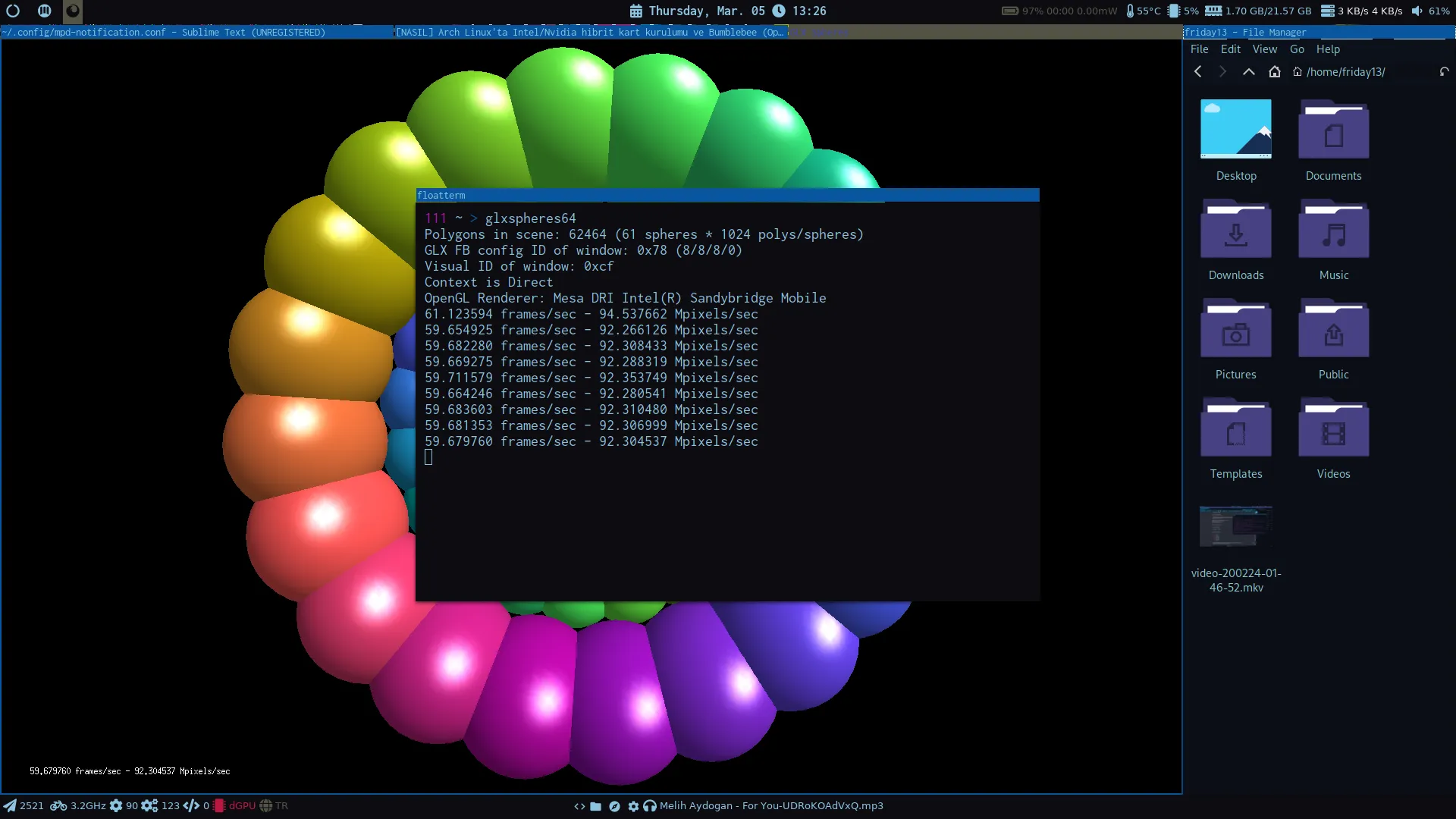
- Dedicated Gpu Performance
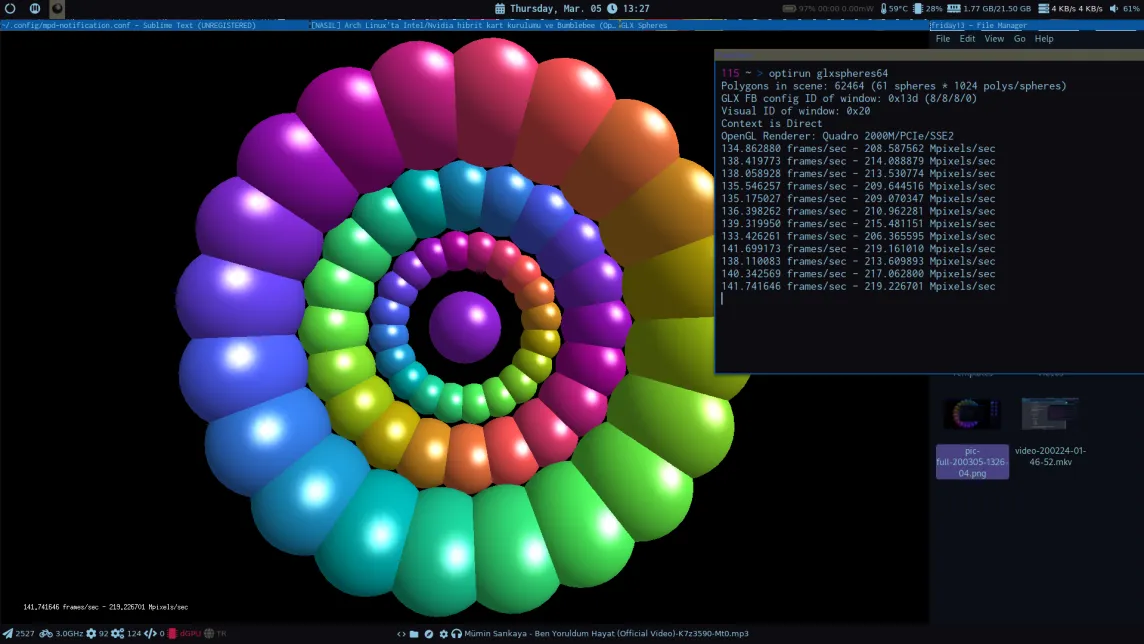
🧹 Importance of Clean Installation#
Watch Out for Conflicts If you tried different methods (Bumblebee, nvidia-xrun, etc.) before, you should delete these configurations before the new installation. Otherwise, optimus-manager won't work properly. Especially old files under /etc/X11/xorg.conf.d/ or services like nvdock can disrupt switching.
🎮 Performance Settings#
If you experience screen tearing or OBS problems when switching to the Nvidia graphics card, first turn off compositors:
killall picom compton xcompmgr
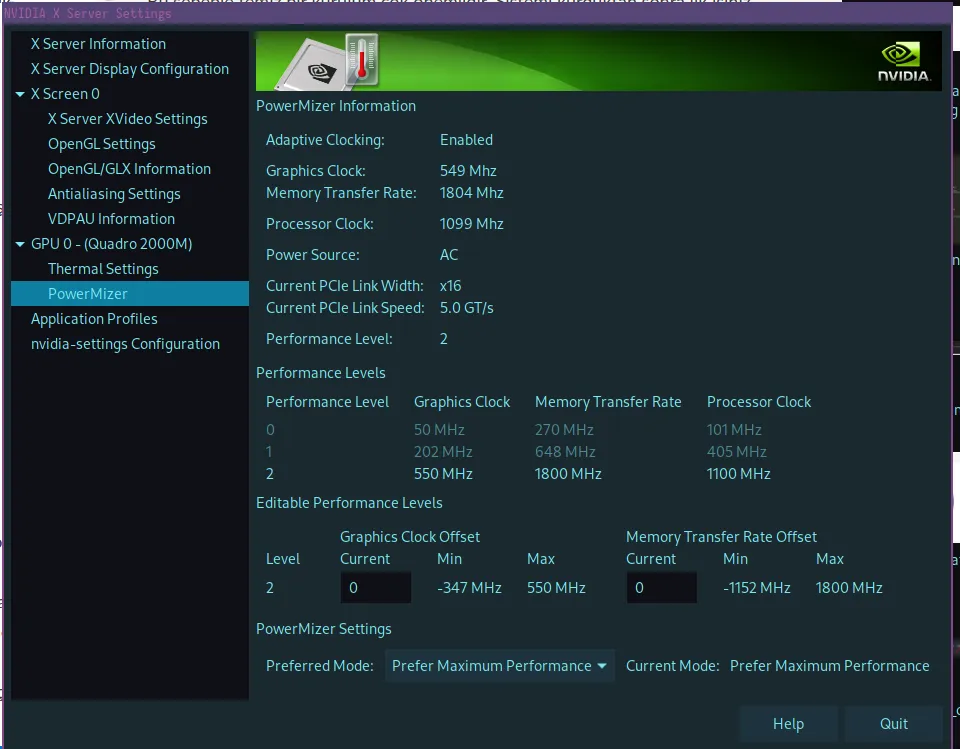
Then open the NVIDIA Settings application:
- Check "PowerMizer" tab and select
Prefer Maximum Performance, - Uncheck "Sync to VBlank" and "Allow Flipping".
-
As seen here, I'm getting 877 FPS.
-
Screen tearing and OBS problems will be solved after performance settings.
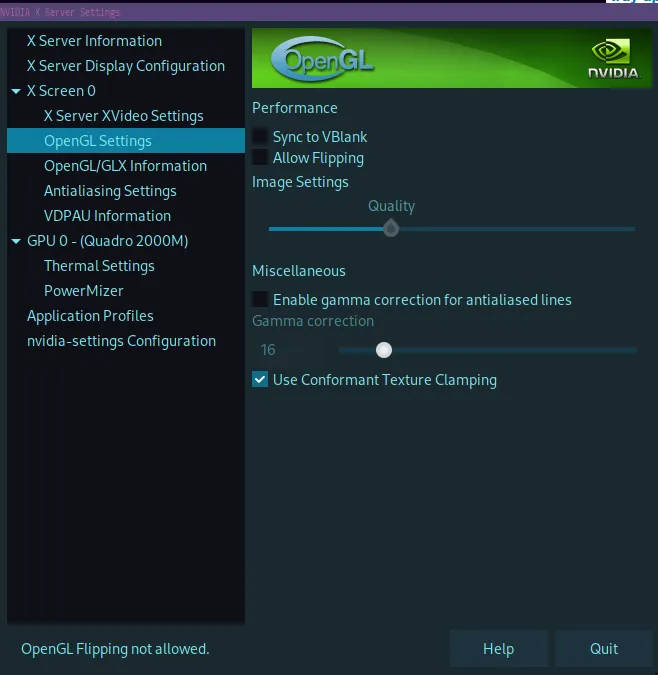
- Maximum performance mode selected with PowerMizer settings.
- OBS using Nvidia GPU and high FPS.
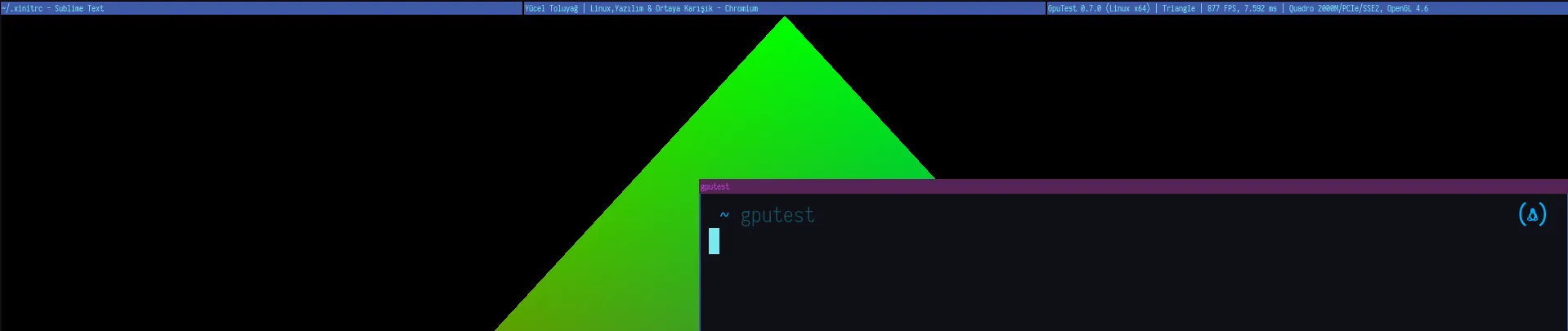
📊 Bumblebee Performance Comparison#
| Test | Bumblebee | Prime |
|---|---|---|
| GPUTest | 215 FPS | 877 FPS |
| OBS Broadcast | High CPU usage | Stable |
| Render (Blender) | 2× slower | Full GPU usage |
Comments