This article is older than 2 years. Some information might be outdated.
Series: Git
Part 1/10In this guide for those experiencing problems creating SSH keys while working with Git, we'll cover the SSH key creation process step by step for both Windows and Linux users. 🛠️
Creating SSH-Key for Windows#
- Download and install Git Bash application from https://git-scm.com/downloads.
- Open the terminal and run the following commands in order:
git config --global user.name "Your User Name"
git config --global user.email "your-email-address.com"
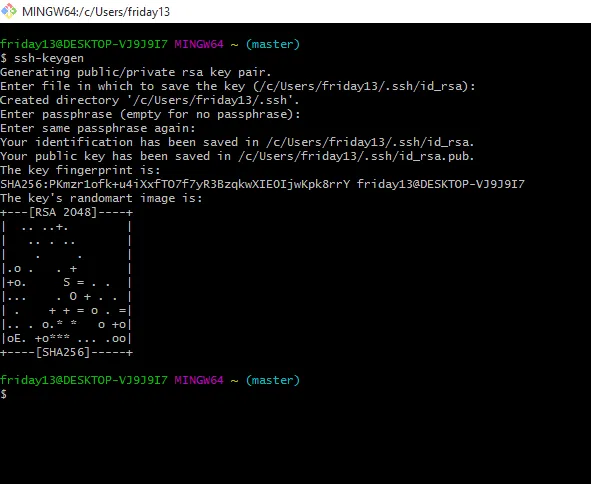
ssh-keygen
- After running the commands, press
Enterkey for all options that appear. - After the key is created, go to
C:\Users\yourusername\.sshdirectory and open theid_rsa.pubfile with Notepad. - Copy the key codes inside the file.
- Go to GitHub SSH Keys Settings page, click the New SSH Key button, paste the codes you copied and save.
Creating SSH-Key for Linux#
- Open Git Bash or terminal and run the following commands:
git config --global user.name "Your User Name"
git config --global user.email "your-email-address.com"
ssh-keygen -t rsa -b 4096 -C "your-email-address.com"
ssh-add ~/.ssh/id_rsa
- After running the commands, press
Enterkey for all options that appear. - After the key is created, copy the content of
~/.ssh/id_rsa.pubfile. - Go to GitHub SSH Keys Settings page, click the New SSH Key button, paste the codes you copied and save.
✅ Now you can securely perform operations on GitHub using your SSH key!
With this guide, you can easily complete the SSH key creation process for both Windows and Linux users. 🚀
Comments